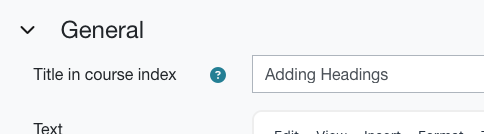
Use of headings is vital for maintaining a visual structure to your course content. In this section, we’ll explain how and what type of headings we recommend based on our student research.
Adding headings to your content
Our research found that students really struggled with navigating around a Moodle course, often due to the large quantity of content. Good use of headings (like the one above) can help students by creating more clarity on the where different content areas start and finish.
Heading types
As part of this framework, we have introduce two new heading styles to help separate different area of content.
- H3 – Heading 3. Used for top level headings within each section. This displays as a black horizontal bar with white text.
- H4 – Heading 4. Used for sub-headings under each H3. This displays as a grey horizontal bar with dark grey text.
You’ll see both in use on this page.
How to add a heading
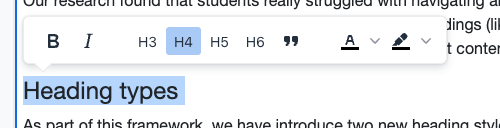
In the Moodle rich-text editor, highlight some text to reveal the formatting toolbar. Then select H3 or H4. We recommend using them in order e.g. start with an H3 and if you have a subheading, use H4. This is extra important for accessibility, as screen readers rely on this hierarchy. While there are also H5 and H6 buttons, your content should not be so complex that you need so many heading levels.
Accessibility tip: Write short but descriptive headings
Why: Short, descriptive headings provide quick, clear information about each section’s content. This clarity is helpful for students with reading difficulties, limited attention spans, or those using screen readers.
Action: Ensure each title is brief and descriptive, using phrases like “Week 3: Design Production” rather than vague labels. Include indicators like “Week X” or other sequential markers to help students quickly and easily identify the order of topics.
Considering the course index
When adding text and media areas, you should have a ‘Title in course index’ option. This is an important consideration because this is how your content will be labelled in the course index (the navigation drawer that pops out from the left of a Moodle course). Many students rely on this for navigating their course, so keep it clear and concise. Consider using numbering if you have a lot of content inside a section.