
Weekly Sections/Alternatives
Students have highlighted the need for a clearer and more consistent way to navigate course materials. One comment from a pulse survey recommended we create: “A more explicit and unified classification framework for the weekly course information content“. This shows that while information is available, finding it isn’t as straightforward for some students.
Currently, weekly and unit topics are structured in different ways across courses. While there’s no single right approach, some formats make navigation easier than others. This section explores the different existing setups and offers recommendations for small tweaks, like adding dates, or topic descriptions to aid consistency and access, helping students find what they need more easily.
There are three main ways courses are currently organised and divided by:
- Weeks
- Topics
- Key Dates
Here are some visual examples of these existing structures, along with recommendations on how to enhance clarity, accessibility and consistency for students.
Accessibility tip: Give context but keep it concise.
Why: When brief context is included (e.g; topic names) they don’t have to rely on memory to find the information they’re looking for. It supports ease of access and reduces cognitive load in the process.
Action: Include the topic without the filler words alongside abbreviated key dates (if applicable.) For instance: “W/C 14/2/25: Visual Communication.” More examples of this are shared in this section of guidance.
Examples
Weeks
You can divide by using a system of numbering the weeks using the date of the Monday and the topic discussed.
Example: 3 | W/C 23/3/25: Concept Design
In action:
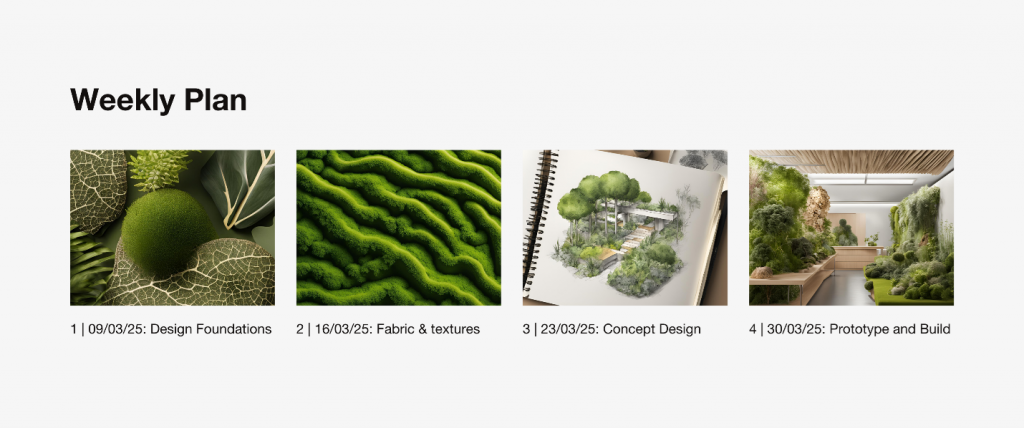
Why is this better for students?
- Reduces cognitive load – includes dates and specific topics so students don’t have to rely on memory to recall when they were covered.
- Enhances searchability – makes it easier for students to find the course material they’re looking for.
Note: While this method requires you to manually insert the dates, it ensures clarity and consistency, making it easier for students to navigate course content at a glance.
Alternatively, you could use a closed bracket like: “3) W/C 23/3/25: Concept Design”. The important point is to be consistent across titling.
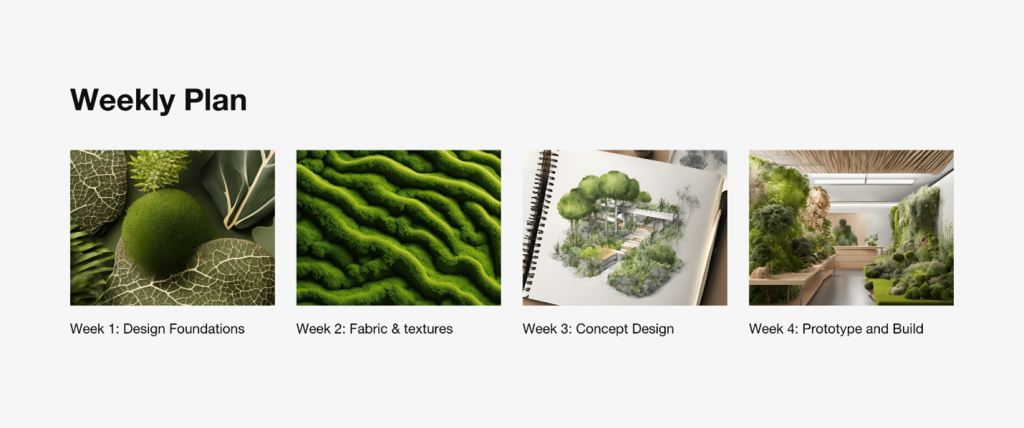
Alternative: Week/Topic
You can also use this format that uses Week 1: in place of 1 | W/C which you may prefer.
Topics
You can divide it by unit numbers and topics.
Example: Unit 1: Foundations of Visual Design
In action:
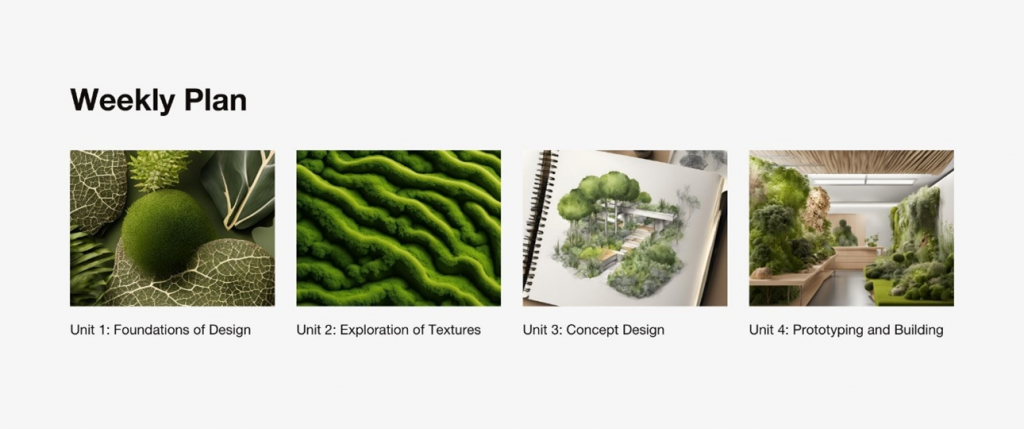
Why this is better for students?
- It provides context – making it easier for students to quickly identify what topics are covered in each unit.
- Serves as a steady replacement for dates – in the absence of key dates, students can navigate their way around using unit topics instead.
Key Dates
You can divide by units while indicating the week using the date of the Monday with the topic covered.
Example: Unit 1 | W/C 23/3/25: Concept Design
In action:
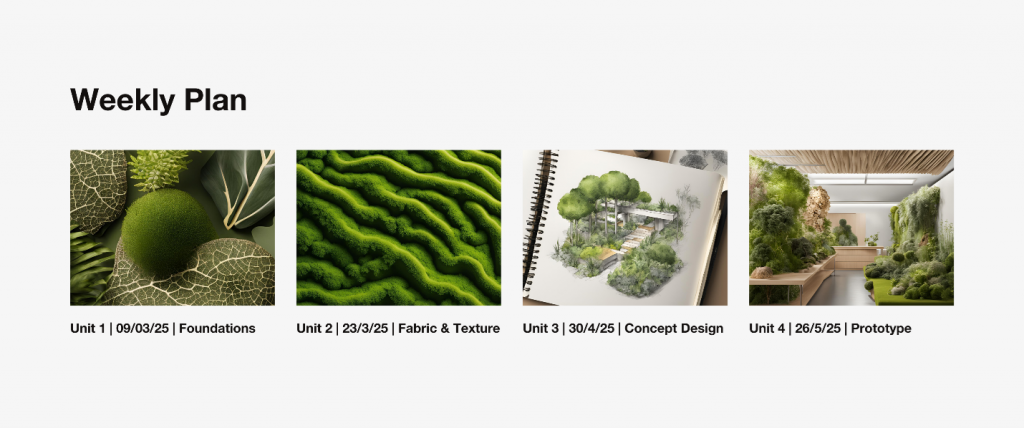
Why this is better for students?
- Helps students navigate non-weekly course structures easier – this set up provides a clear reference point by associating each unit with a specific release date.
- Supports flexible learning – some students may engage with course materials asynchronously. Including key dates alongside topics makes sure they can quickly find the information they need.
Customising section headings for your course structure
By default, the section heading in your course layout may appear as ‘Weekly Plan’.
However, if your course is structured by topics or key dates rather than a weekly format, you may want to change this to something more relevant, such as ‘Course Plan’, ‘Course Overview’ or another title that better reflects how your course materials are structured.
To update the section heading:
- Go to the section where ‘Weekly Plan’ appears (where your course sections are.)
- Click the three-vertical-dot menu in the top-right corner and select ‘Edit section.’
- Scroll down to the ‘Section break’ settings.
- Ensure ‘Section break’ is enabled by selecting ‘Yes’ – this will allow headings to appear.
- In the ‘Section break heading’ field, replace “<h2>Weekly Plan</h2>” with your preferred title, such as “<h2>Course Plan</h2>”
- Save your changes and this will update the section heading.
Summary
Here are a few general tips to improve clarity and consistency, no matter which format you use:
- Add context (but keep it concise) – Short topic names or brief descriptions can give students clarity without overwhelming them with information.
- Be consistent with labels – Stick to one naming style across the course to help students recognise patterns.
- Use relevant images or icons – Visual signposting can make it easier for students to scan through content.
Whether your course is structured by weeks, topics, or key dates, small adjustments can make a big difference in how easily students can navigate and understand the materials. The aim isn’t to overhaul what’s there, but to build on it in ways that reduce friction and support learning. A few clear signposts and small consistency tweaks can help make course materials easier for students to find and follow.