Student email forwarding

Open Outlook

Open Outlook in a web browser

Make sure you’re logged in to your student email account. To do this you can use a different browser if you’re already logged in to your staff account.

Set up a new rule

Click Rules, then Manage Rules in the Outlook menu bar

The Outlook for web menu bar with the Rules option highlighted

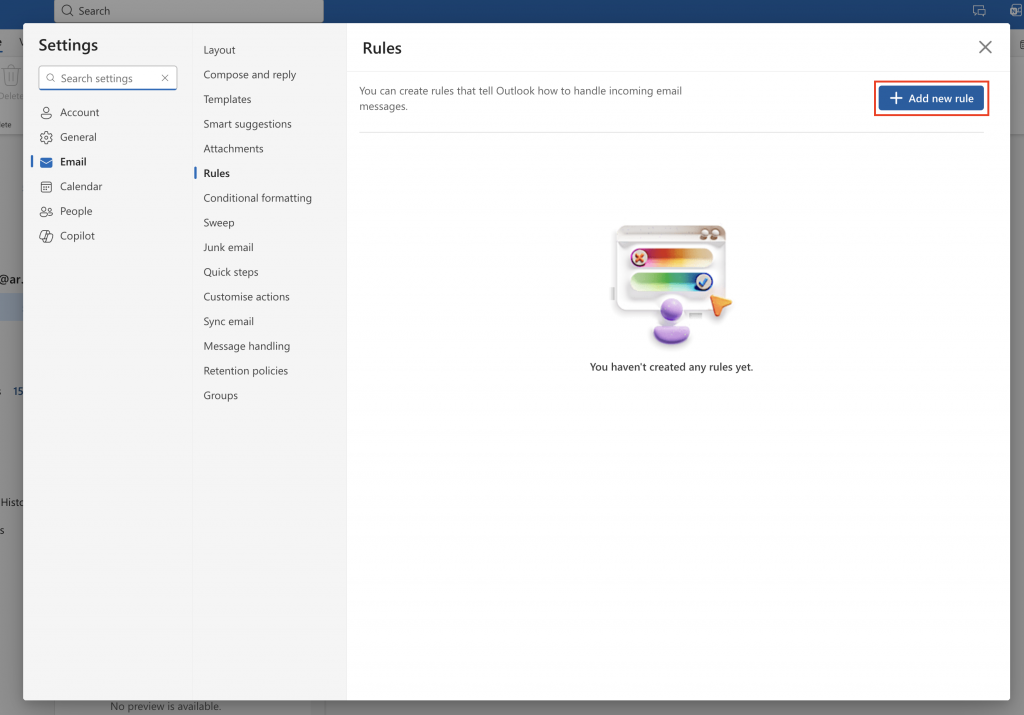
Click Add a new rule

The Manage rules window with the Add a new rule button highlighted

Enter a name for you rule in the Name field
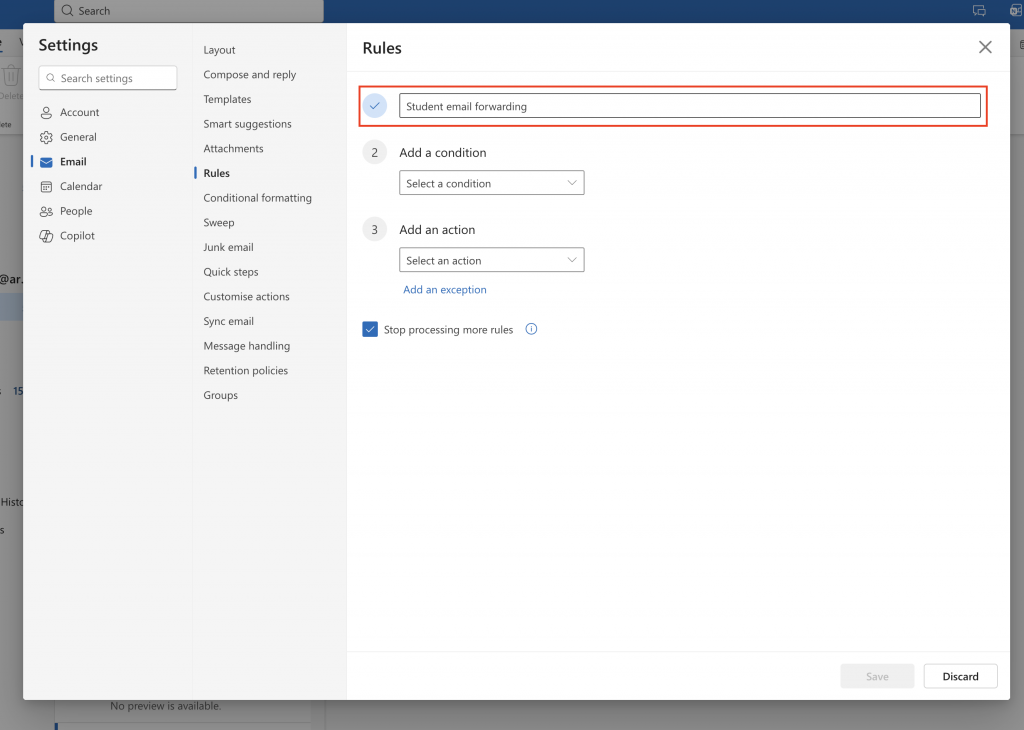
The add a new rule window, with the name field highlighted

Click Select a condition, then select Apply to all messages
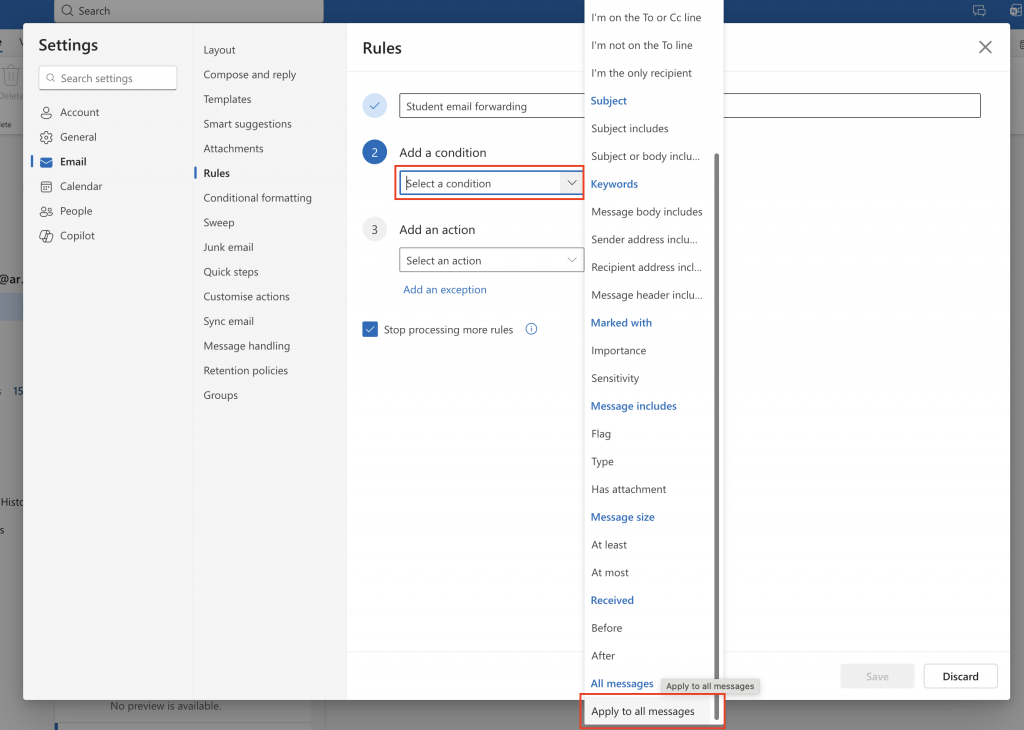
The add a new rule window, with both the add a condition field and the condition apply to all messages highlighted

Click Select an action, then select Forward to
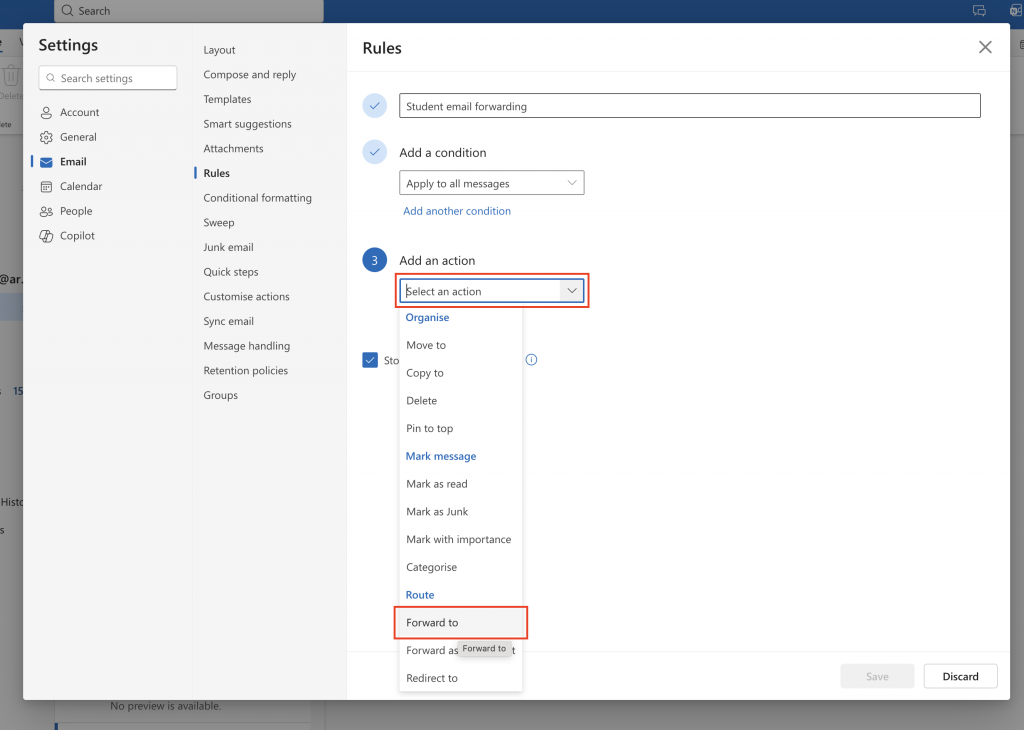
The add a new rule window, with both the add an action field and the action forward to highlighted

Enter your staff email address in the action field
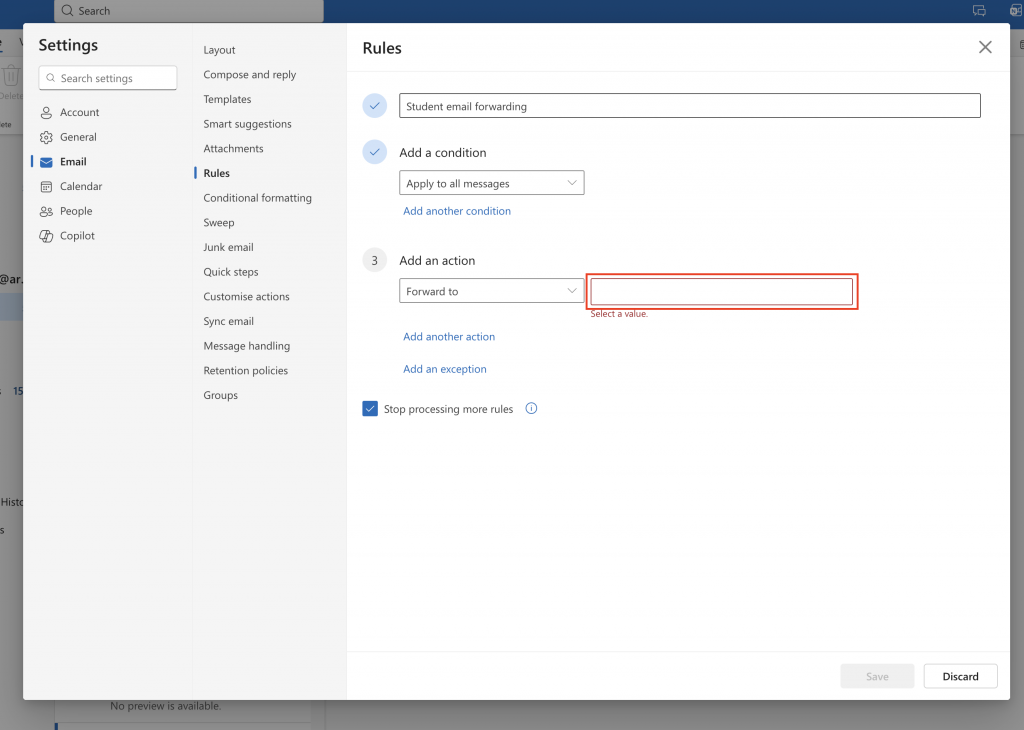
The add a new rule window with the email address field highlighted while adding a new forward to rule

Click Save to finish adding your rule

Back to top