
Explore quick methods to improve accessibility when using Mentimeter. You can either scroll through the tips or select from the list below to jump to that section.
- Prepare presentations and questions that are easy to understand
- Alternative ways to participate
- Response time
- Accessibility of Mentimeter features
- Alternative communication methods to enhance engagement
- Accessibility functions within Mentimeter
Prepare presentations and questions that are easy to understand
- Limit the text on Mentimeter slides, avoiding longer question descriptions. Use plain English, prompts and avoid acronyms keeping questions short to support engagement.

- Practice reading and answering the order of questions you create to gauge processing time, pauses and reflection.
- Share some brief context with the participants before sharing or asking for input on Mentimeter. Provide slides or questions ahead of time to reduce cognitive load in sessions.
Provide alternative ways to participate
- Incorporate a backup or alternate response method for participants, such as engaging through the chat, over a shared document or through a ‘reaction’ response for students who may not be able to access Mentimeter easily.
- For example you can choose between five different symbols, depending on what kind of feedback you want to get:
- Heart
- Question mark
- Thumbs up
- Thumbs down
- Cat (just for fun)
- Share the QR code to the board and also the short link, show this visually or read the link out clearly
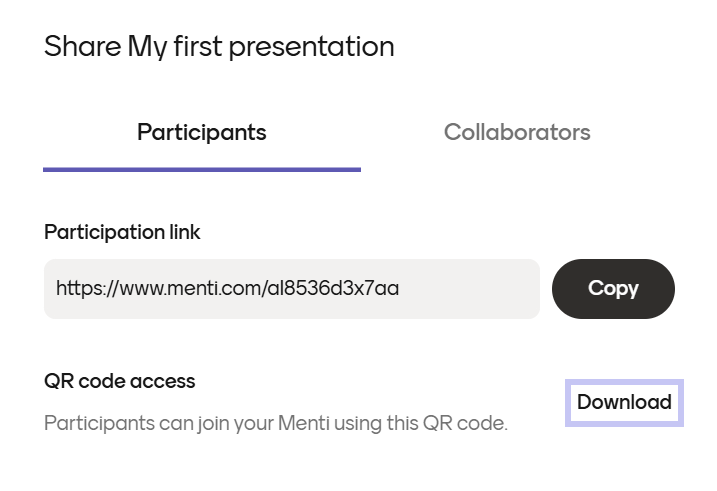
How to share a QR code or short link:
- Click on the ‘Share’ button in the upper right hand corner of your Menti dashboard.
- Under the participants tab you can download the QR code for your Menti presentation.
- Here you can also share the direct participation link.
How to share the access code:
- In your Menti presentation and slides, there is an 8 digit code located on the upper middle part of the slide.
- Share this 8 digit code and the Menti with participants. This code allows your audience to join the presentation via menti.com
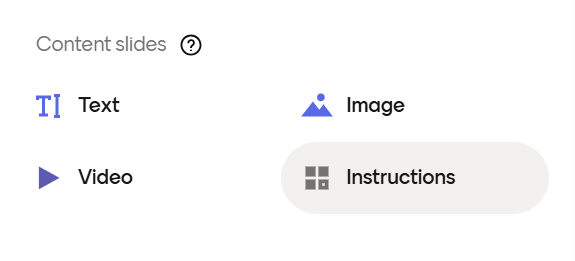
Note : You can also share an ‘instructions’ slide in the presentation to display this information visually
Allow time for people to respond
- Add pauses or longer breaks for students to read and remember to respond to prompts, including quiet time for focus.
- Consider integrating Mentimeter presentations pre and post sessions asynchronously to allow more time for engagement.
- Allow time for participants to get familiar with Mentimeter the first couple of times you use it and let students know they will be interacting with the platform in advance.
Consider the accessibility of features more regularly
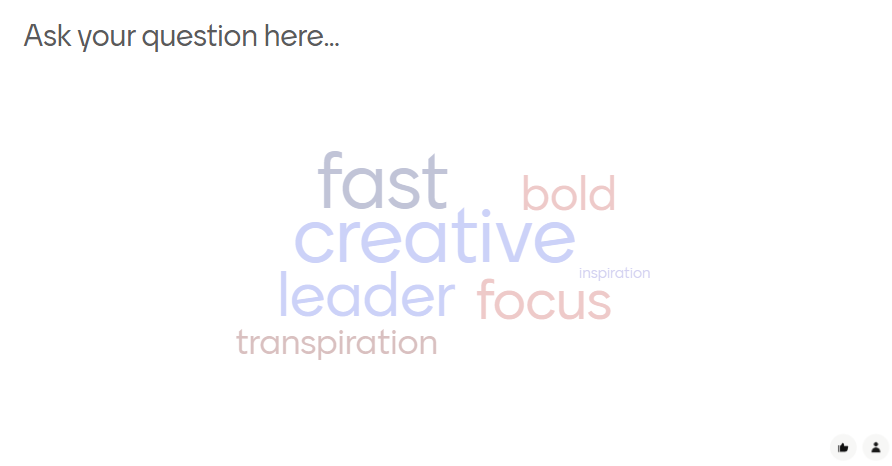
- Word cloud questions can be challenging for students who use screen readers in translating the visual format
- Ranking question options can be challenging for students increasing cognitive load by tracking multiple items at once.
- Pin on image questions can be challenging for some students as it relies on specific visual engagement
- You don’t have to avoid these questions completely, it’s important to consider your audience and provide an alternative to support inclusive and accessible participation.
Provide different types of communication for engagement and participation
- Verbally explain the order of the activity alongside visual instructions. For example, how to join Mentimeter or how to submit answers and what to expect next.
- Read out key features of word clouds or charts to support engagement.
- Summarise key learnings, results or answers shared from Mentimeter aloud in group settings.
- Make it clear when and how participant names will be used during activities, or if there will be anonymity in answers ahead of submitting.
How to use the participant names feature:
Voting with Mentimeter is anonymous, however there are a few options so that presenters can analyse results depending on certain attributes within the audience.
- In the interactivity tab, toggle on the ‘participant names are required option’
- Once this is on, participants will see a screen before joining a Mentimeter presentation asking to share their name.
Note : It will also notify participants that their name will be shared with other participants and recorded with responses and questions.
Use accessibility functions within Mentimeter
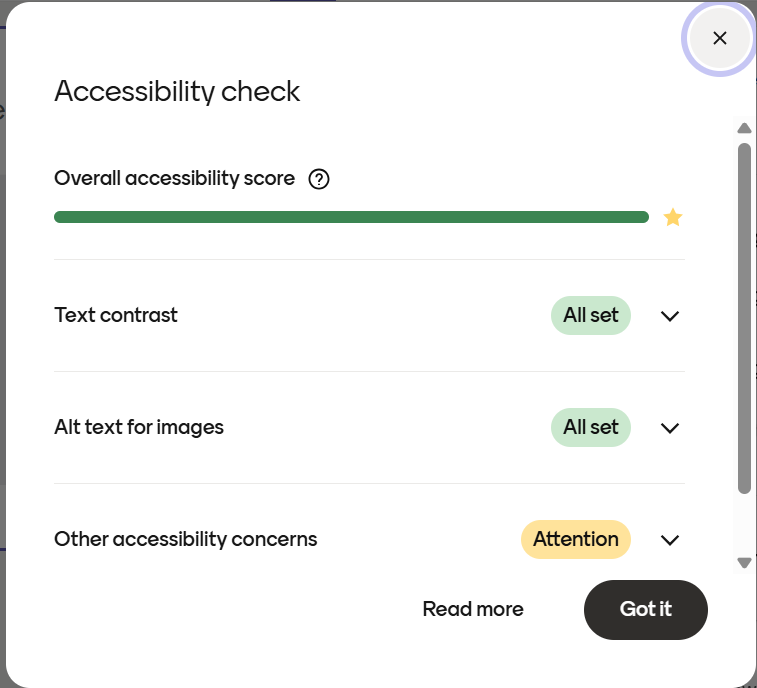
- Utilise the accessibility checker built into Mentimeter when designing your slides.
- Consider colour contrast and dark mode on web browsers and on mobile.
- Suggest using the hotkey ‘I’ to show the joining instructions on any given slide.
- To use the live caption tool within Powerpoint and Menti, create your questions in Menti and import them into your powerpoint.
Note: There is guidance available created by Mentimeter on how to present with accessibility and inclusion in mind