The Microsoft 365 Activity meeting interface will create Teams meetings to use as online teaching sessions.
If sessions are correctly set up to match timetabled teaching sessions, users will be able to see a list of upcoming classes from the Upcoming Tab.
Staff or students who are directly invited to meetings will also receive Outlook Calendar invites.
Some meeting options are only editable after initially saving the meeting then returning to Edit it.
Whoever creates a meeting session will be set as organiser of the meeting, which gives them exclusive control of the pre-meeting settings and means they are the only person who can move or cancel the session.
The organiser will also always be the recipient of the session recording file.
Ensure your organisers are prepared and available for ongoing management of meetings and recordings.
Note: As with regular Teams meetings, anyone with the link will be able to join the session. If the meeting link is shared with students through a non-UAL channel (ie Whatsapp) they will still be able to attend but as an ‘unverified user’
Open your Moodle course page, then click the Microsoft 365 LTI activity. This will be named whatever it was named at setup, for example ‘Online Classroom’.

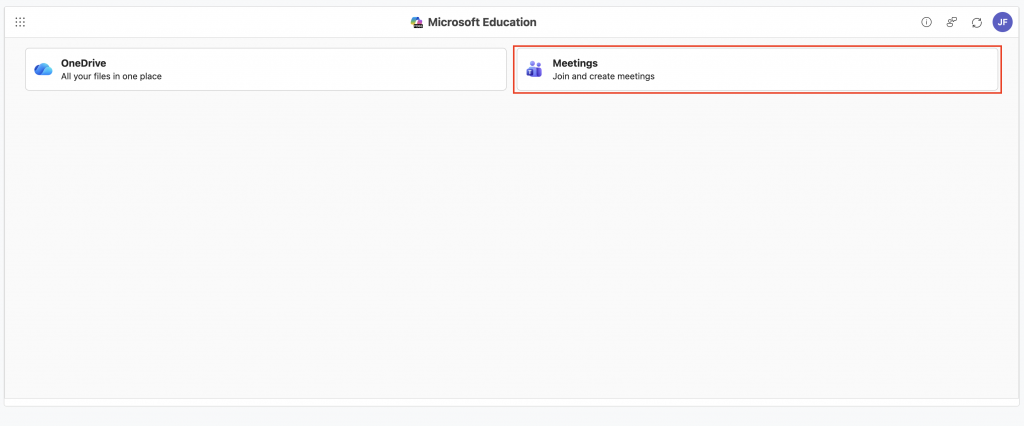
Click on Meetings
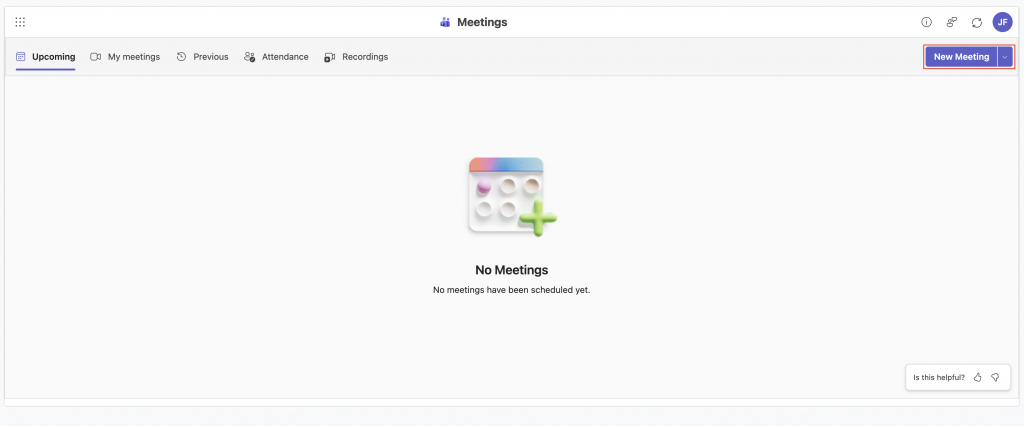
Then click the New Meeting button
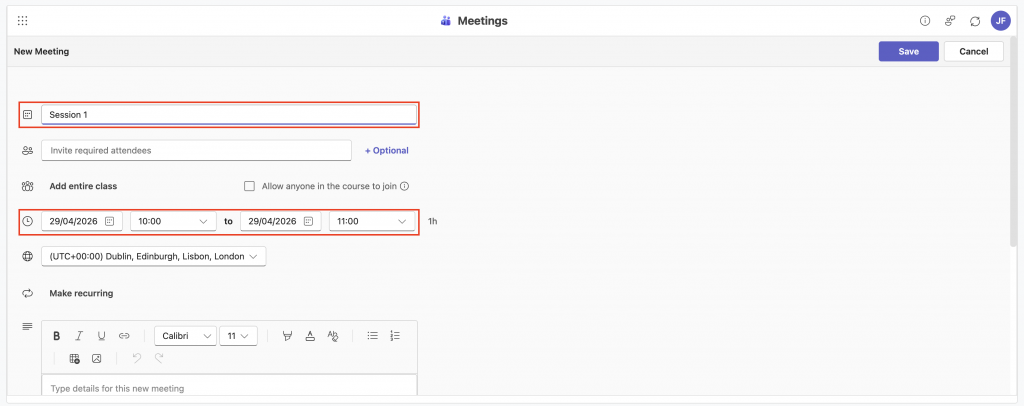
Name the session, and set the time and date
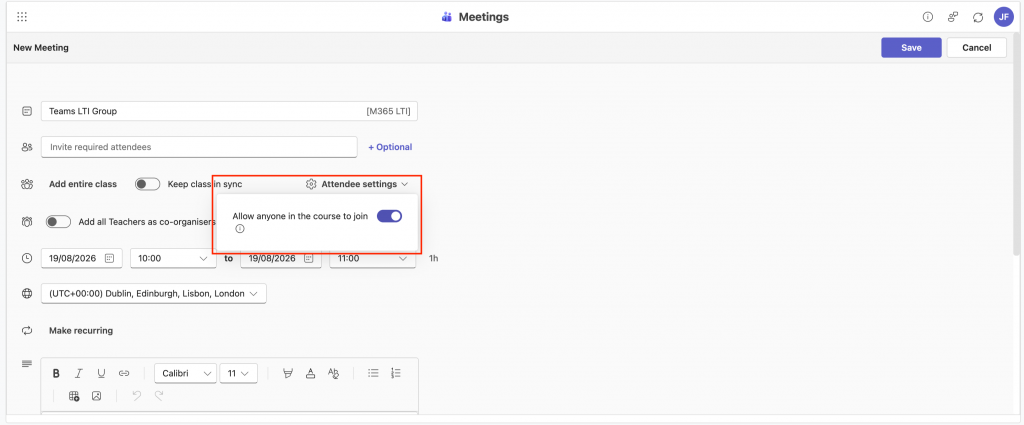
Under Attendee settings, select Allow anyone on the course to join
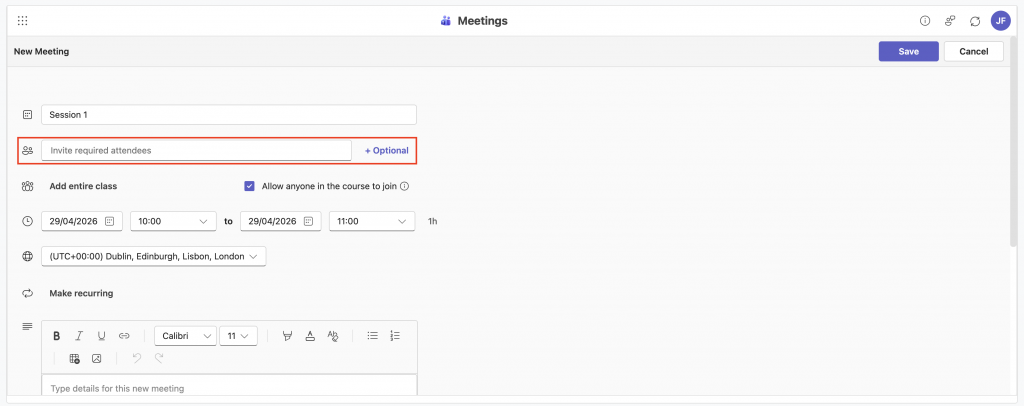
Add specific tutors/guests/CSAs to invite list (those to be added as co-organisers)
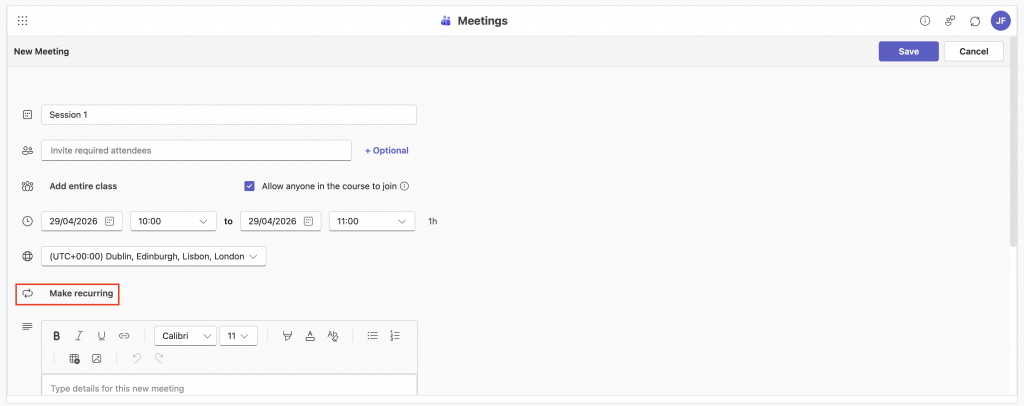
Choose whether you want a single or recurring session. If recurring, click Make recurring and set the recurring times/dates
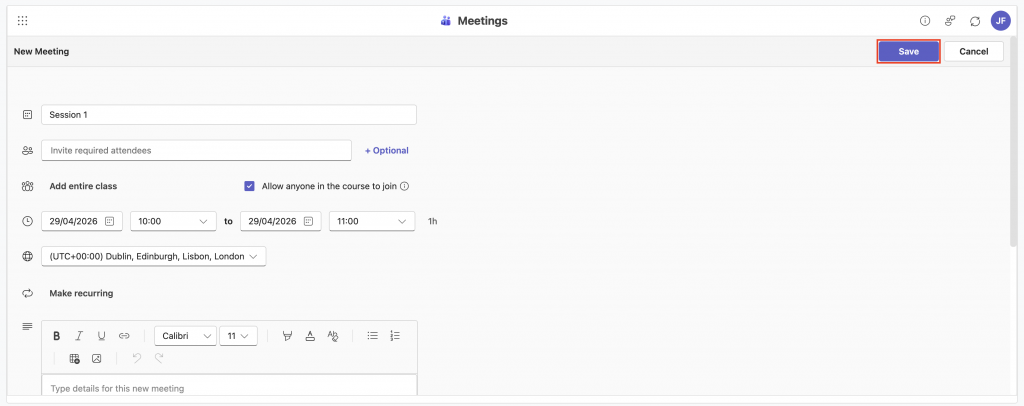
Click Save