Introduction
Microsoft Teams allows users to engage with online sessions. Users can share their camera and microphone, chat and share files, and present content from devices to others within the session.
Some of these features might not be available in your session if the meeting organiser has disabled access.
Before the session
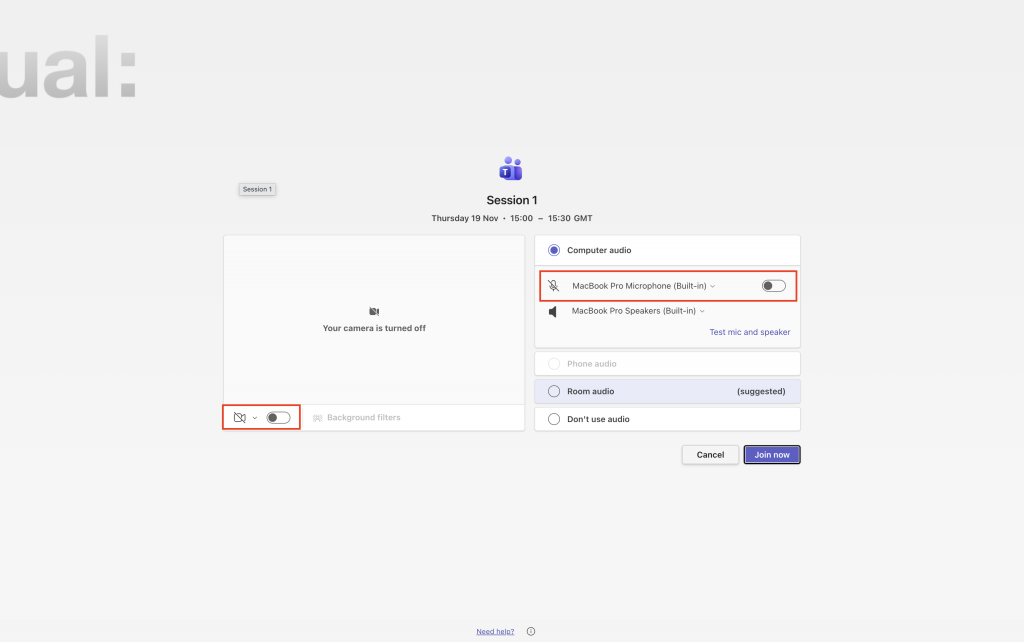
From the join screen you can update some settings before you join the session.
Toggle your camera and microphone on or off using the video and audio controls.
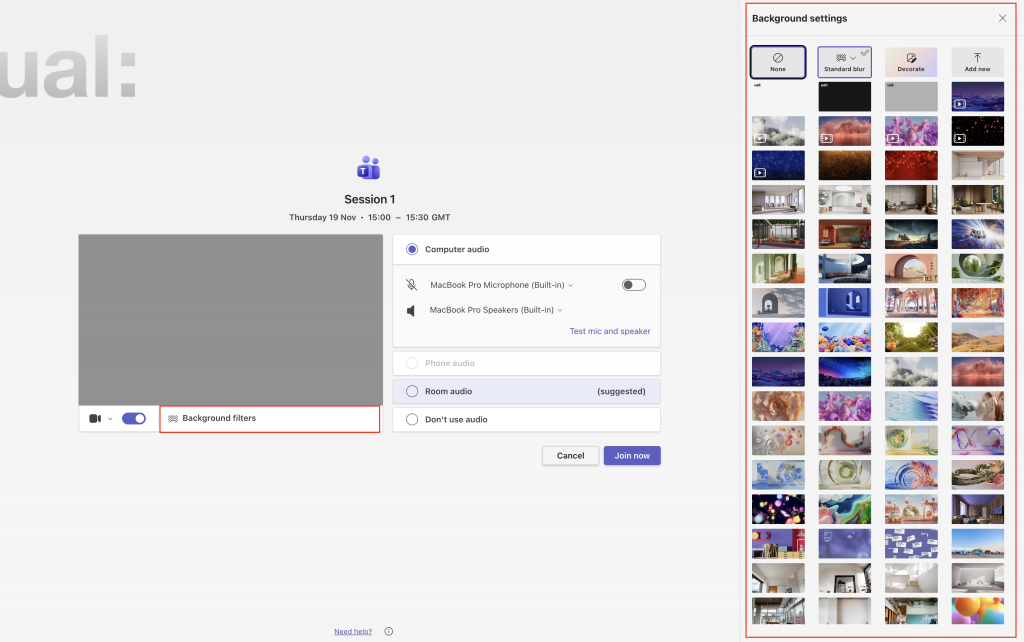
Enable your camera, then use the background filters to change your background
During the session
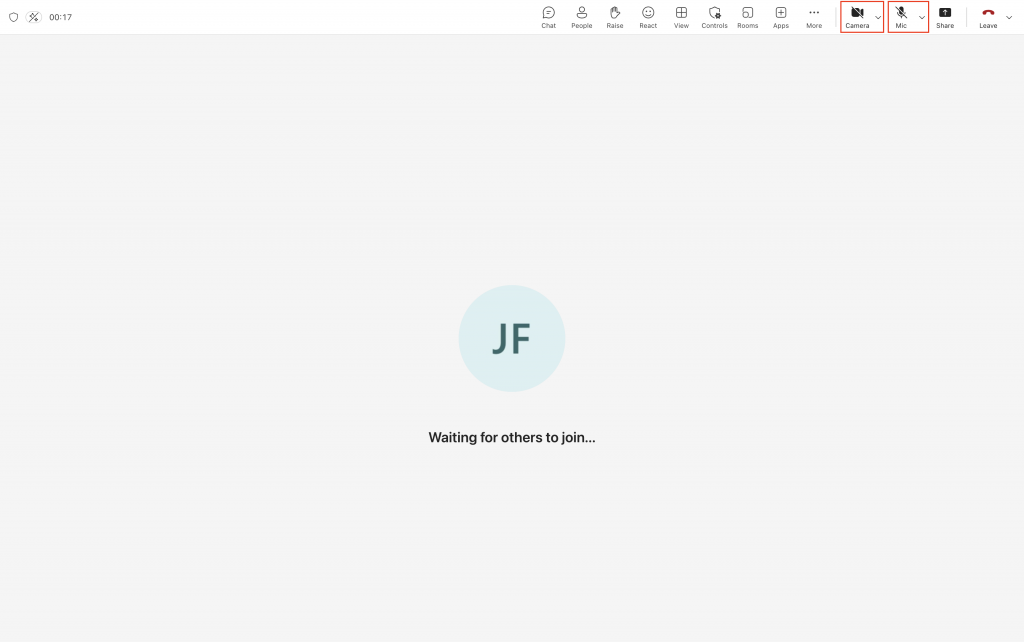
Share your camera or microphone in the session using the Camera and Mic buttons
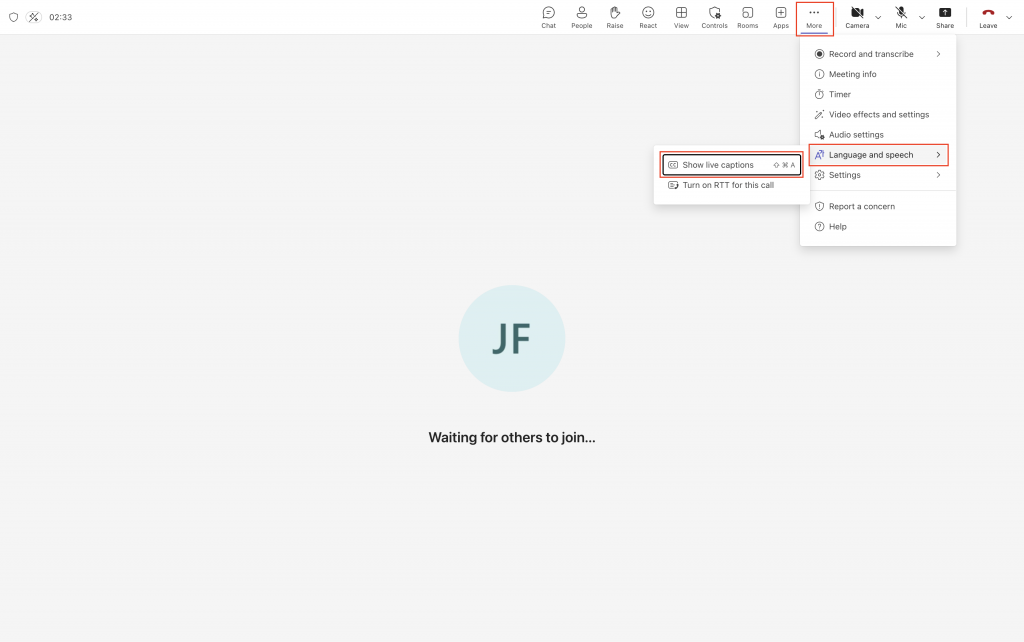
View live captions by selecting More > Language and speech > Show live captions
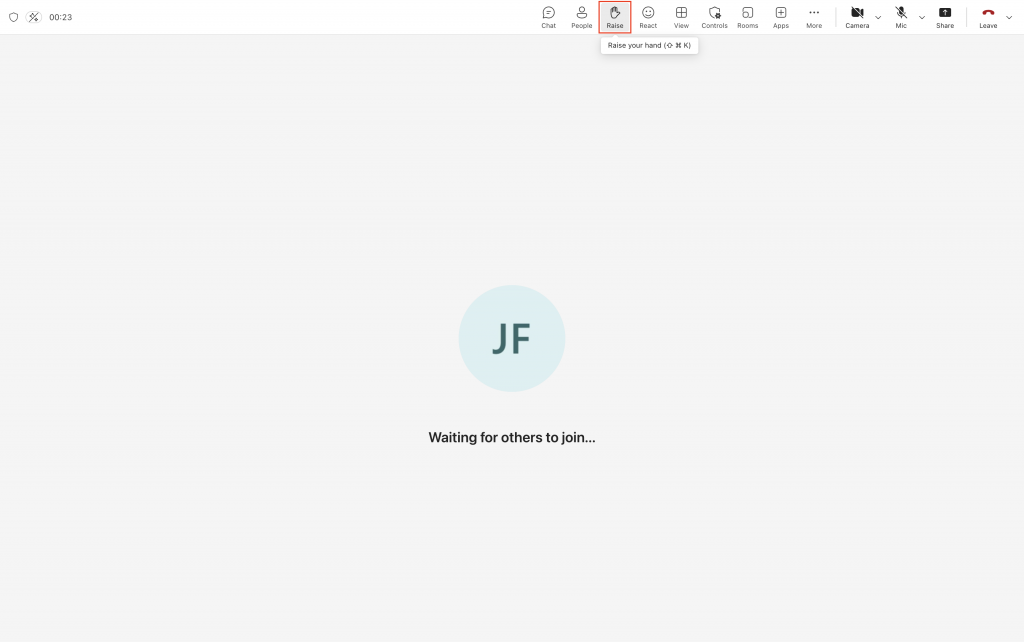
To put your hand up in a session use the Raise button
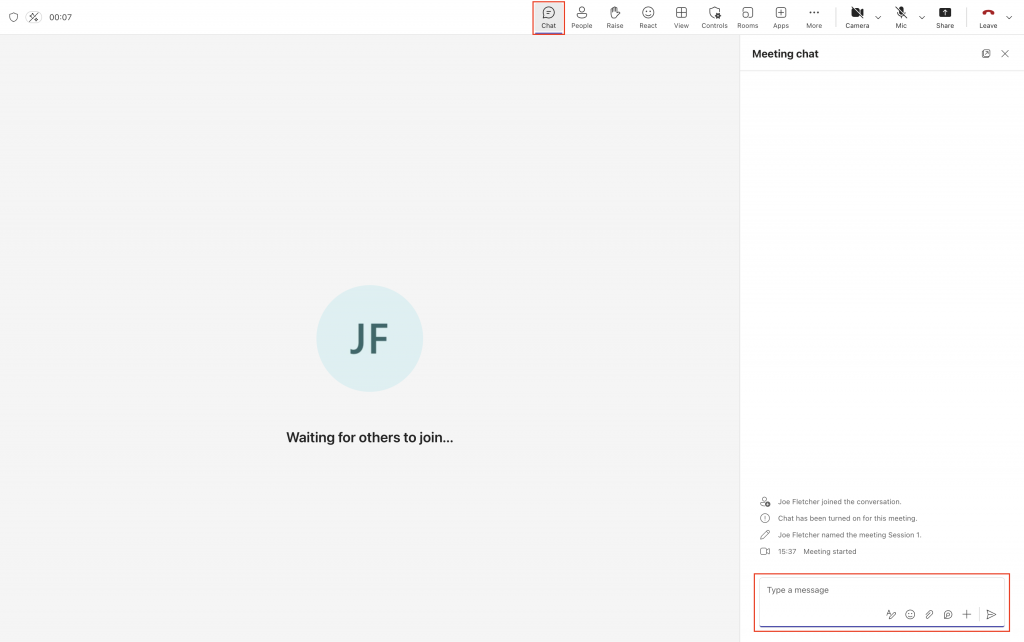
To read or send messages in the meeting chat, click the Chat button. Use the message box at the bottom of the Meeting chat panel to type and send messages. These messages will remain visible in the chat after the session finishes.
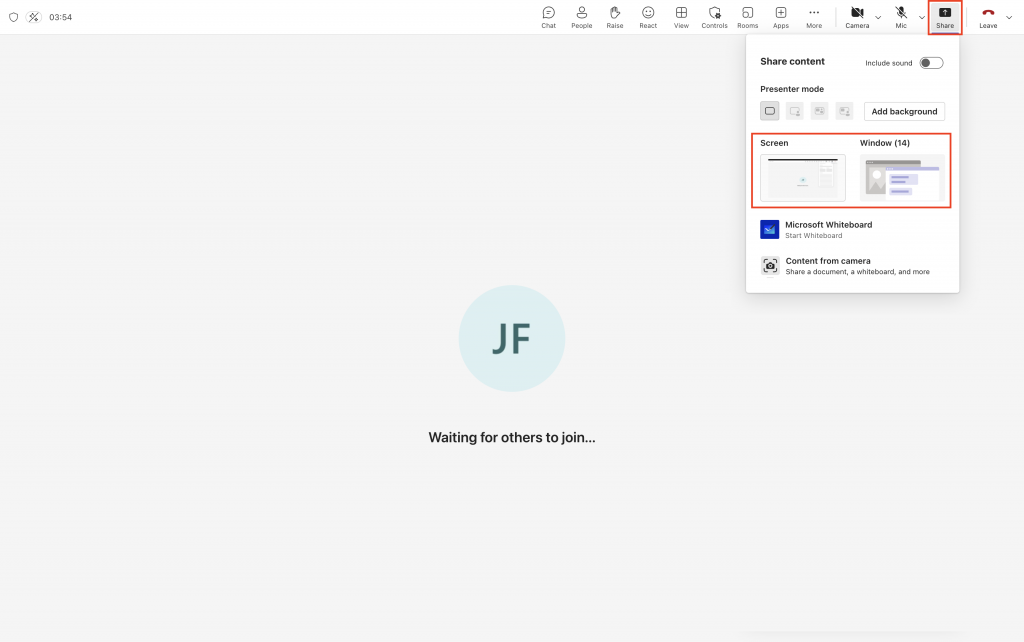
To share content from your device, click Share then select the content you’d like to share. You can choose to share your whole screen or just a particular window.