Introduction
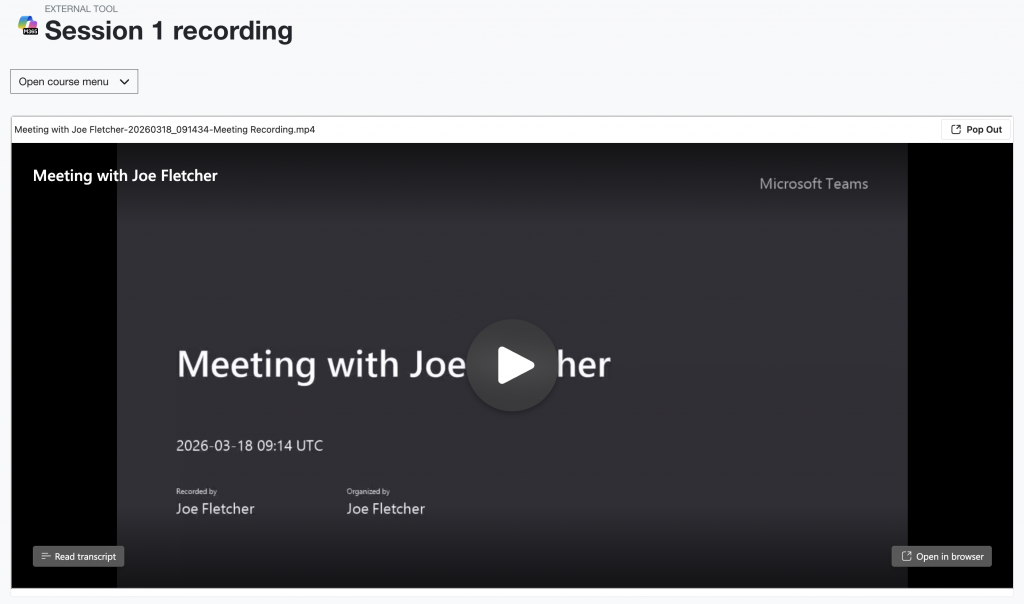
To share recordings of Microsoft Teams sessions with students on Moodle we recommend using the Microsoft 365 LTI. This will embed the recording within your Moodle course, and create a copy for long-term storage that is added to the course Sharepoint site. Our guidance below shows how to do this in a few short steps.
Recordings of Microsoft Teams sessions will initially be saved to the organiser’s OneDrive. Files should never remain solely on OneDrive, these recording files have a short retention period of 60 days and responsibility for management falls on the individual user. Sharing recordings using the Microsoft 365 LTI extends the retention period, and gives access to manage recordings to other staff users in the Moodle course.
Personal Onedrive accounts also have storage restrictions in place (New digital storage limits coming to Microsoft 365). Recordings will not start if the OneDrive account of the organiser is over the storage allowance.
Finding your Teams session recordings
Meeting recordings will be saved to the organiser’s OneDrive (the person who initially created the meeting). All recordings will be saved in the folder titled Recordings in OneDrive.
Sharing a recording on Moodle
Open your Moodle course page, and turn on Edit mode

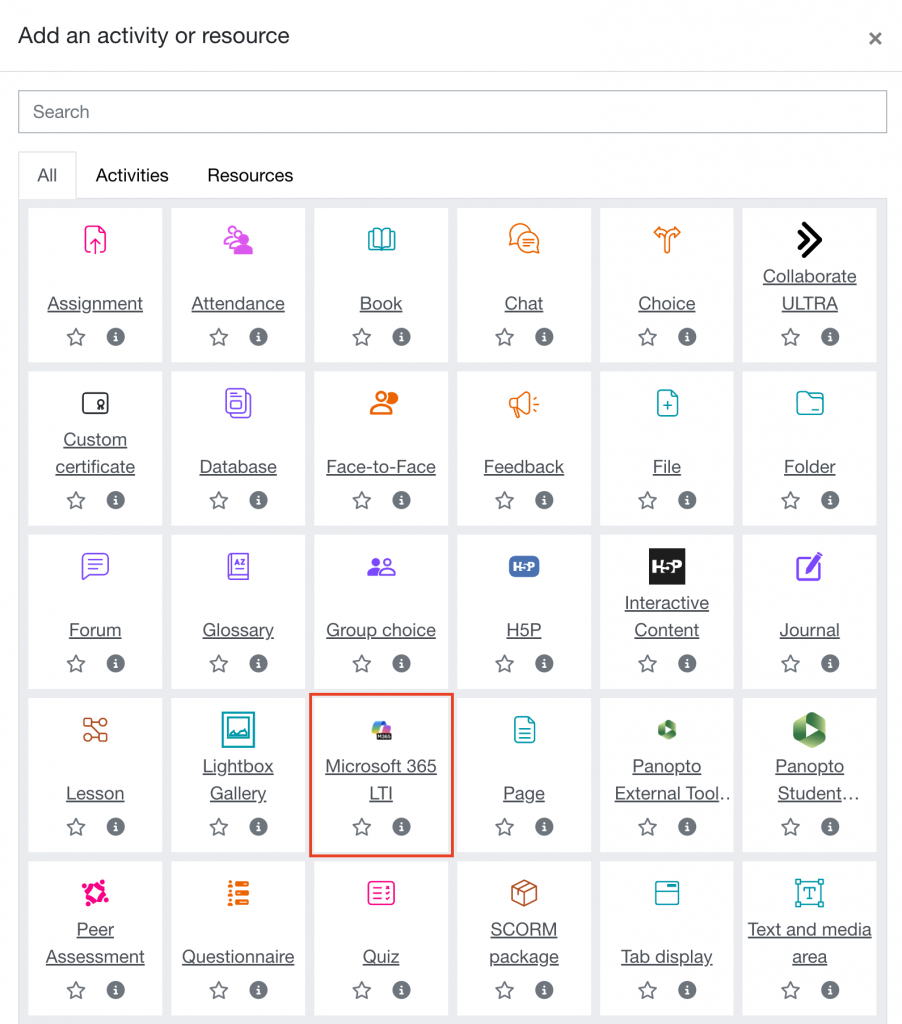
Click Add an activity or resource

Select Microsoft 365 LTI
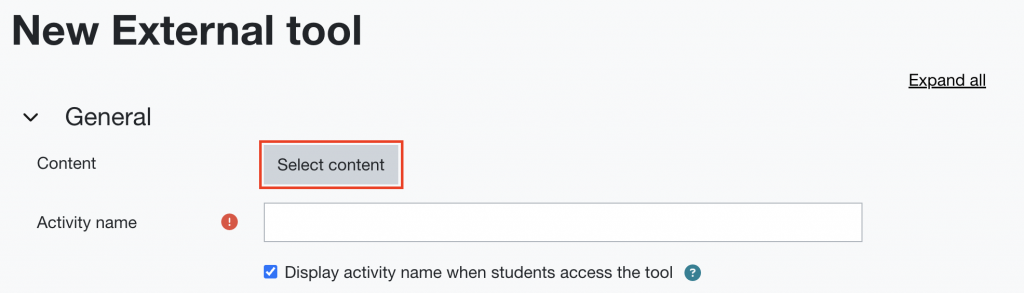
Click Select content
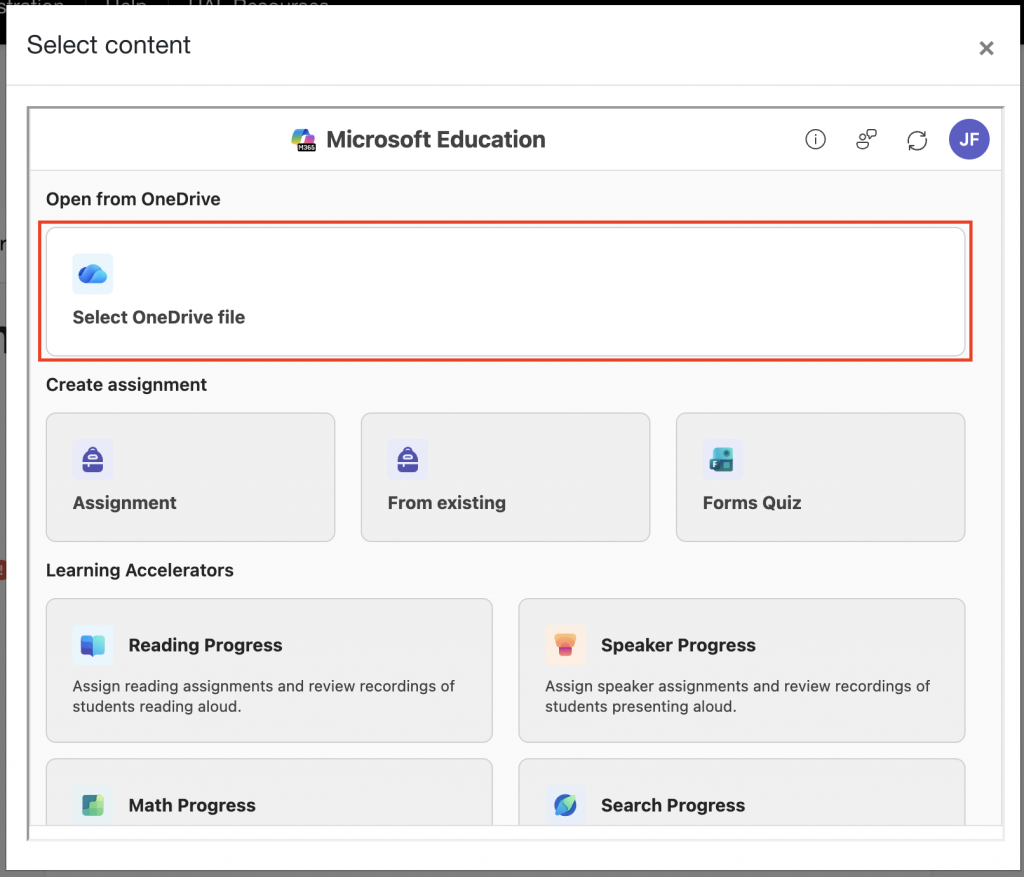
Choose Select OneDrive file
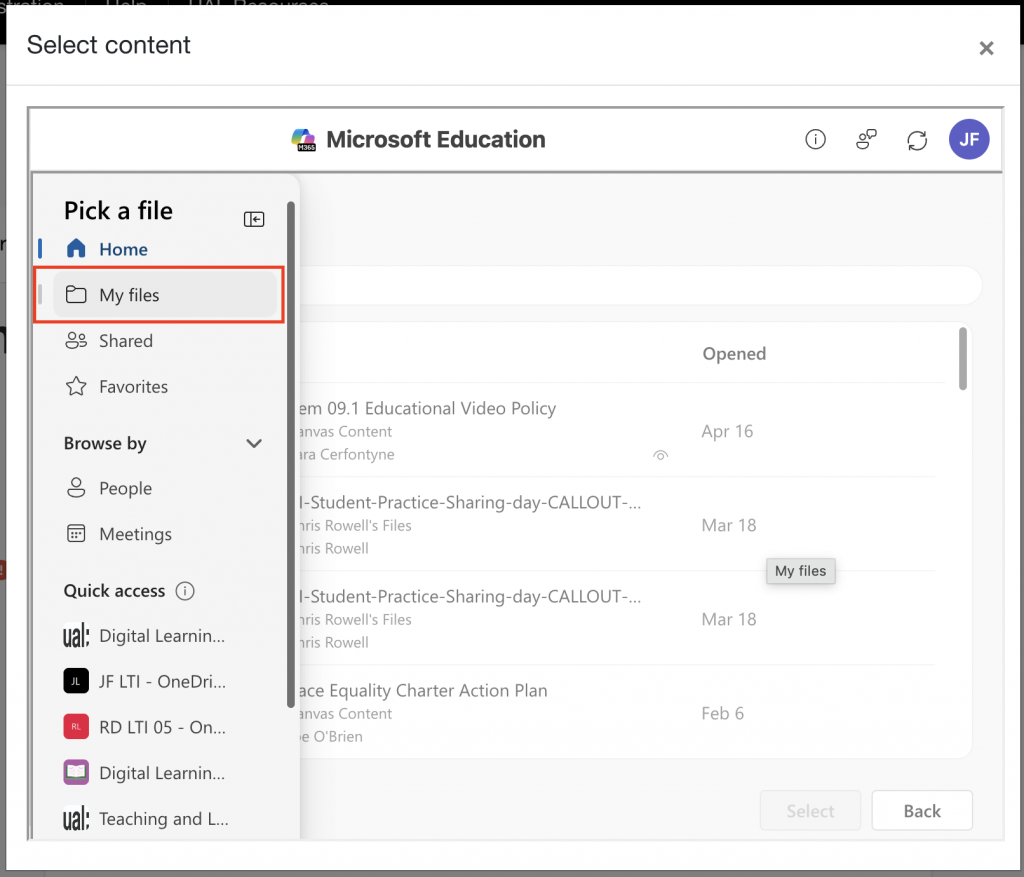
In the file selector window, click My Files
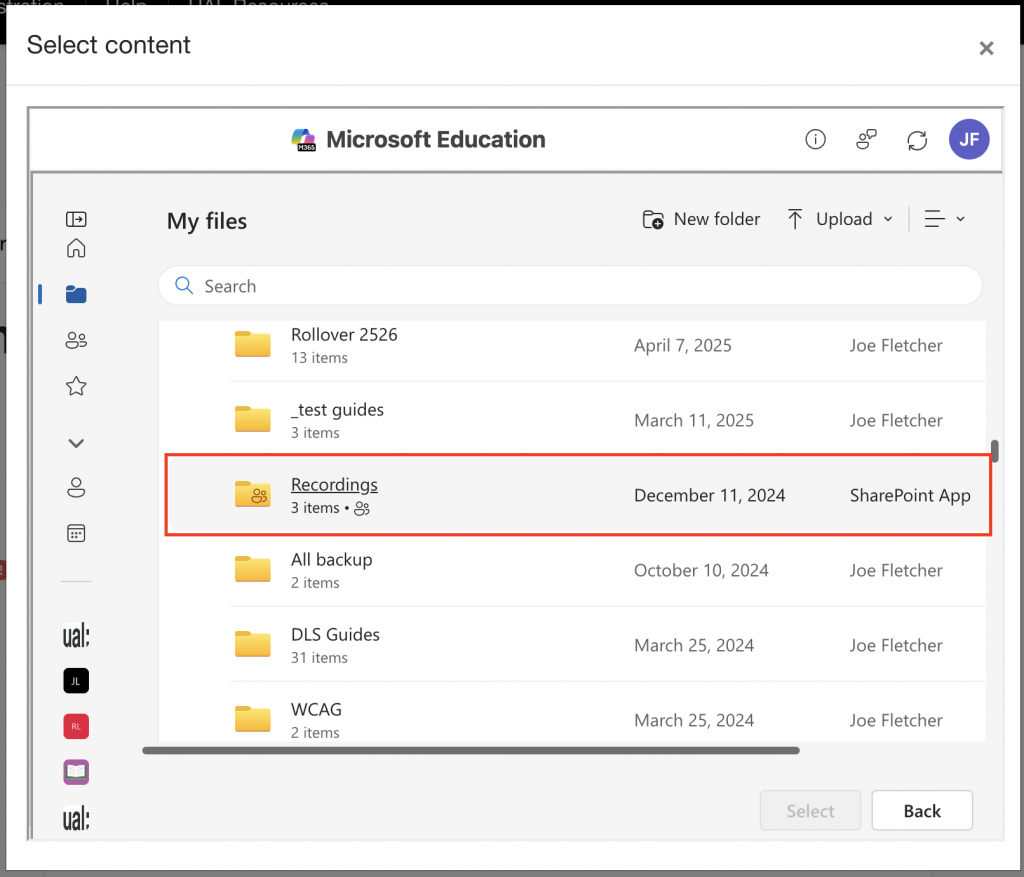
Scroll to the folder named Recordings
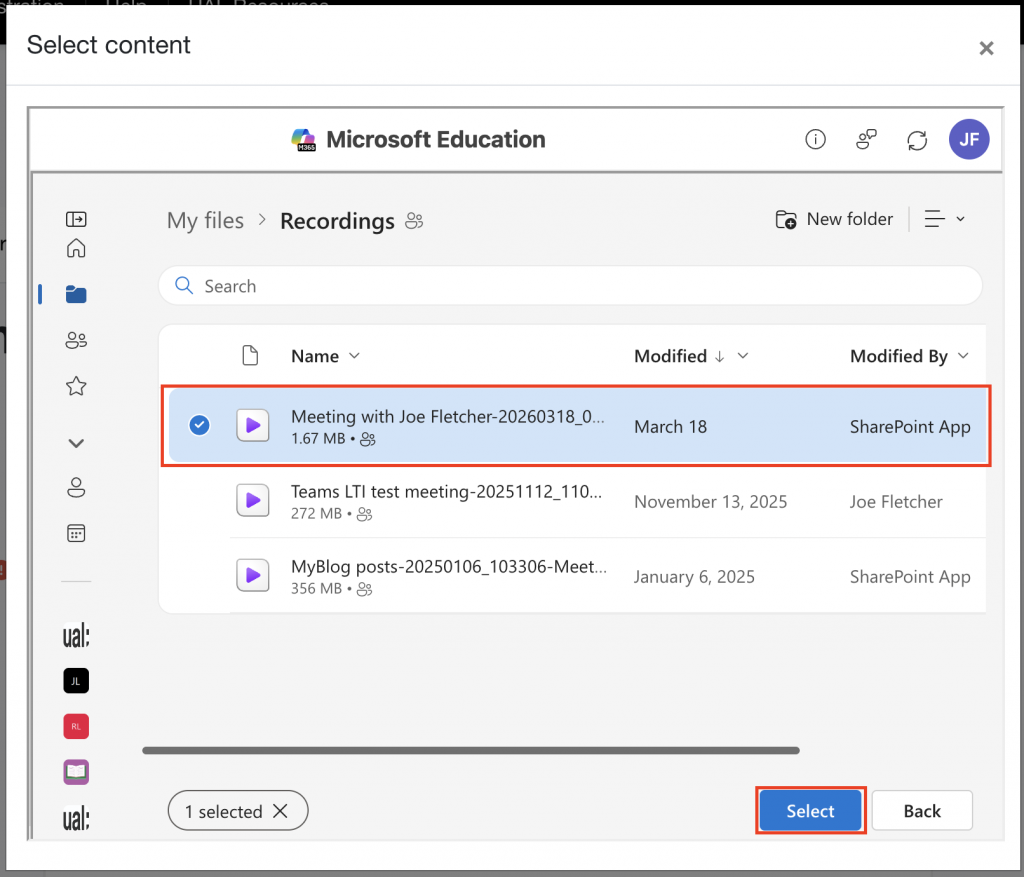
Select the file from the list of available recordings, then click Select
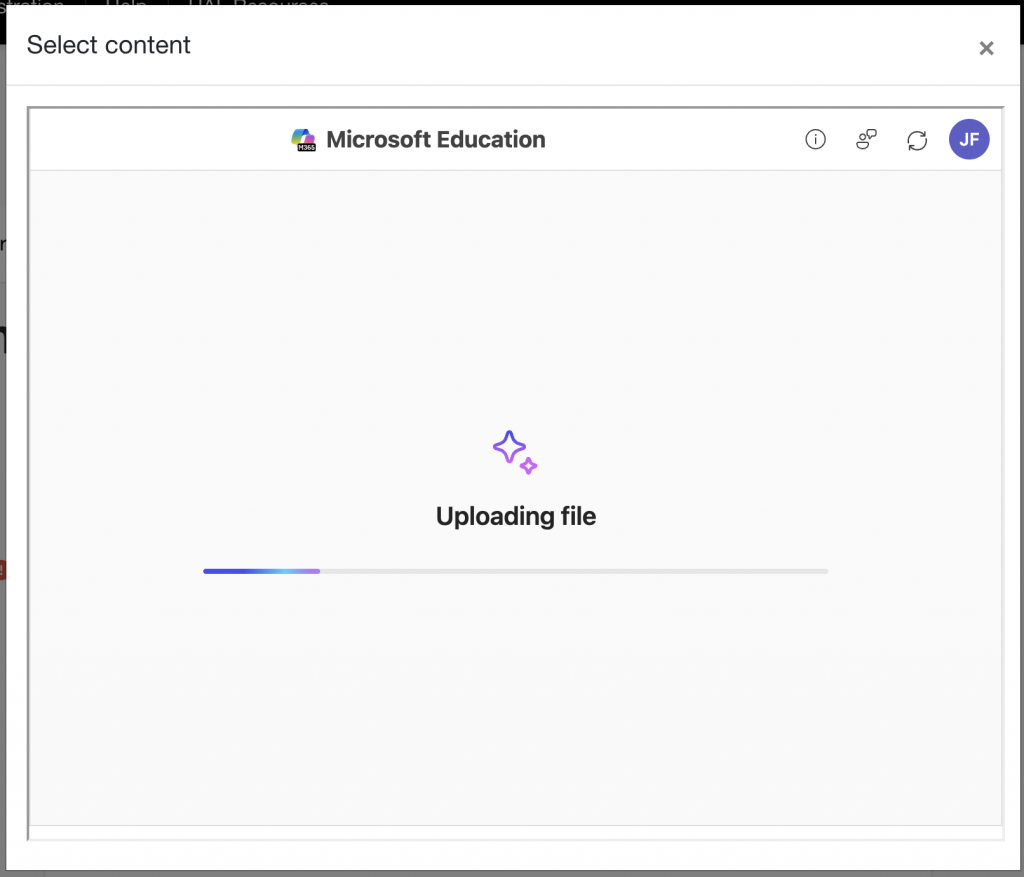
The file will upload to the course Sharepoint site. Once complete you’ll be returned to the Moodle activity.
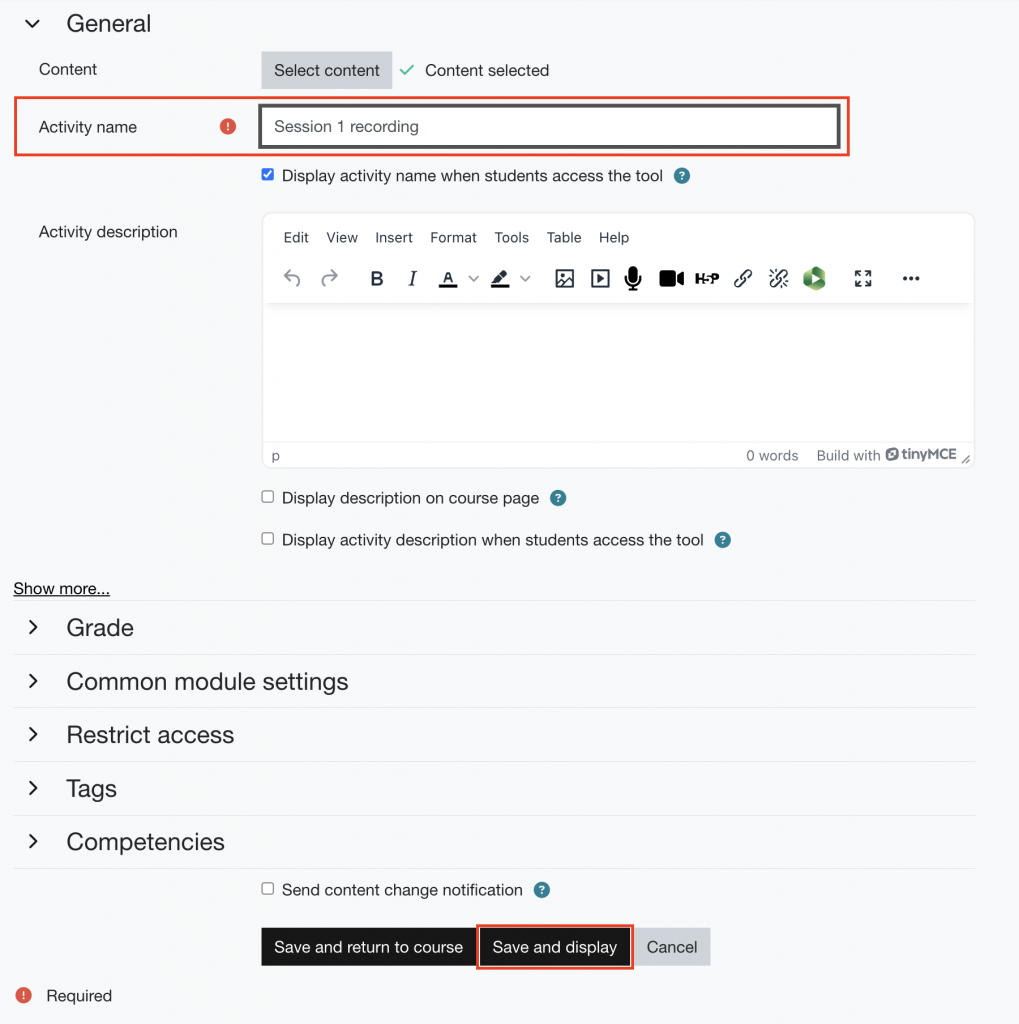
Add a name for the recording in the Activity name field (this will automatically take the name of the recording file). Click Save and display to complete the process.
You’ll be taken to the view of the recording in Moodle