
Introduction
Teams sessions have additional settings that can be configured after the meeting has been created. These settings include choosing who can present, start a recording, or use their camera or microphone in a session.
The default settings for Teams sessions allow all participants to use their camera, microphone or share content from their device. These permissions can be removed for participants by updating the Meeting Options following the steps below.
Updating session settings
Open the Microsoft 365 LTI from your course page
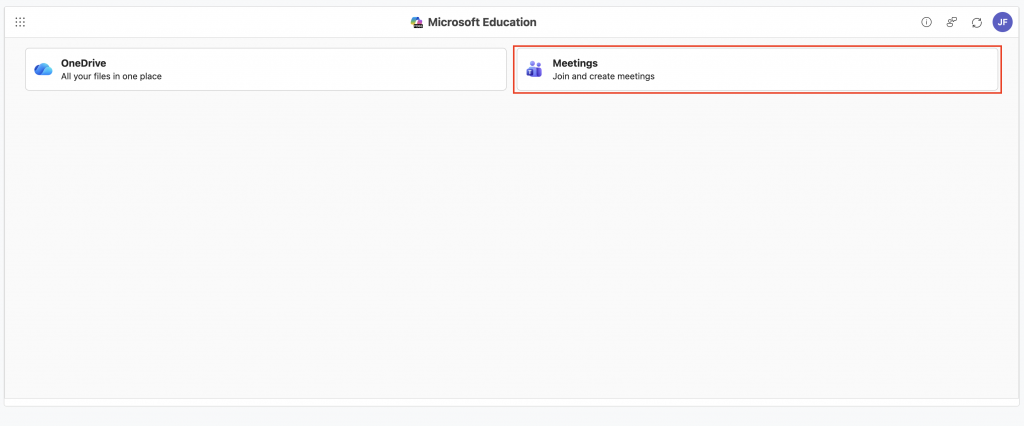
Click Meetings, then scroll to the meeting you’d like to update
Click Edit

Click Meeting Options

A new browser tab will open displaying the meeting options. Sections for the meeting options are displayed on the left hand side.
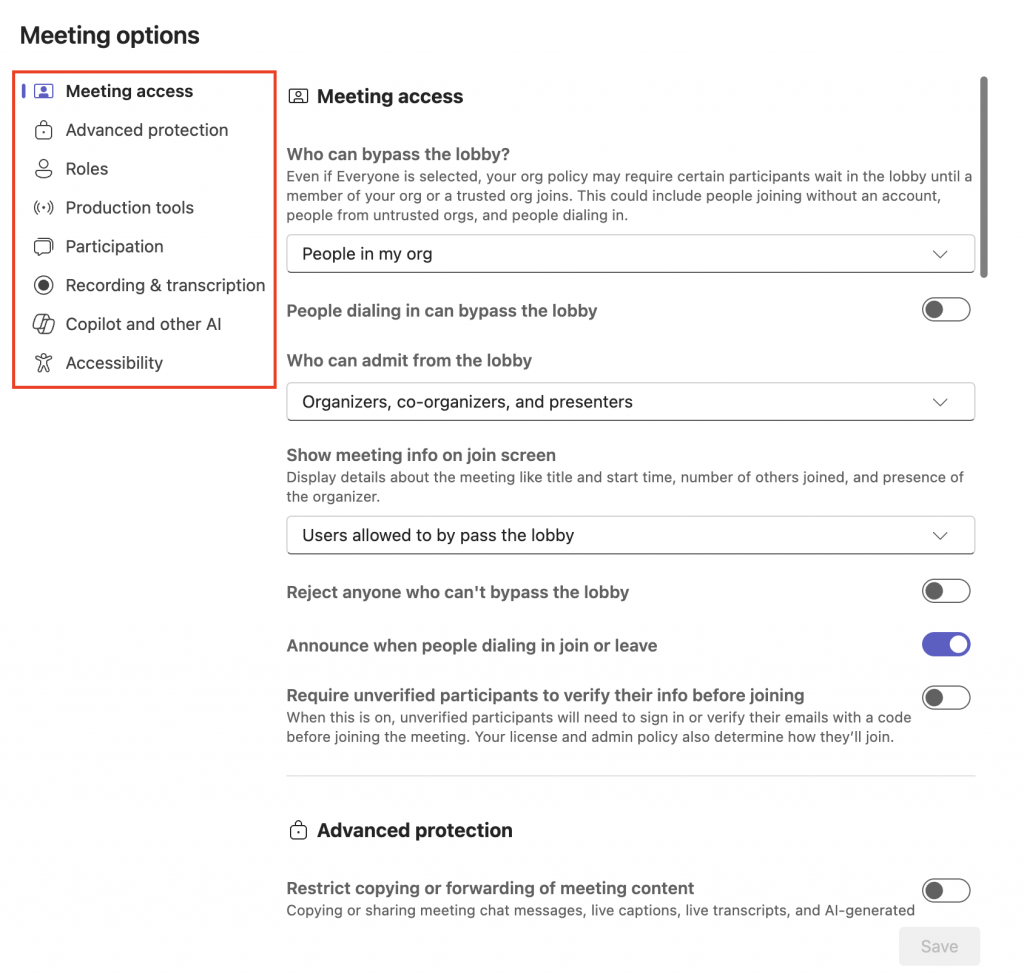
Below are some recommended changes for various session types:
| Sections | Setting | Change to | for session type | who performs action |
|---|---|---|---|---|
| Meeting access | Who can bypass the lobby? | External guest sessions | CSA, Teaching staff | |
| Roles | Choose co-organisers | All | CSA, Teaching staff | |
| Participation | Allow mic for attendees | External guest sessions Unit briefings Whole cohort sessions | CSA, Teaching staff | |
| Participation | Allow camera for attendees | External guest sessions Unit briefings Whole cohort sessions | CSA, Teaching staff | |
| Participation | Q&A | External guest sessions | CSA, Teaching staff | |
| Participation | Meeting chat ON or OFF | All | CSA, Teaching staff | |
| Recording and transcription | Who can record and transcribe *TEAMS PREMIUM FEATURE | All | CSA, Teaching staff |
Make any desired changes to the session, then click Save
