
If you receive an error message stating ‘Unable to complete login securely. Please try again’ this indicates you need to follow the steps below. Please choose the section that corresponds with the browser that you are using.
Private or incognito browser sessions will also block third-party cookies. We recommend using a regular browser session to set up or join Microsoft Teams sessions.
Google Chrome
Follow the steps below to enable third-party cookies in Google Chrome.
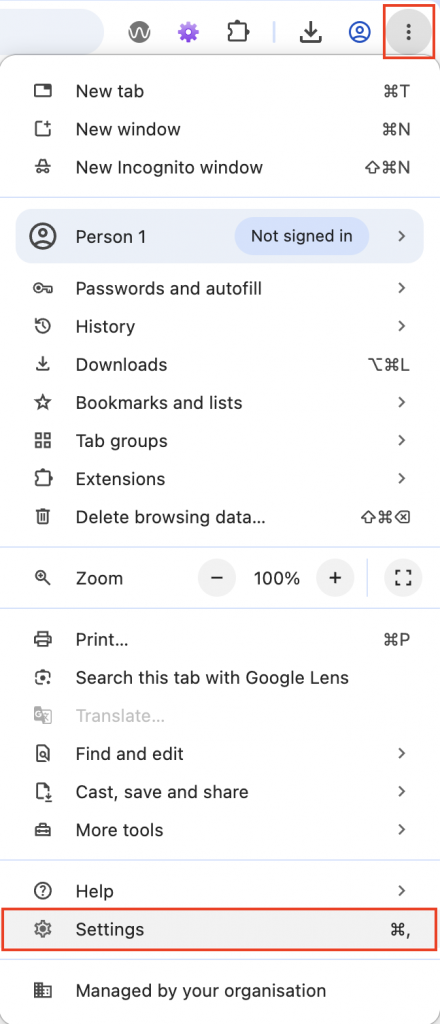
Click the three dots menu button in the top right corner, then select Settings
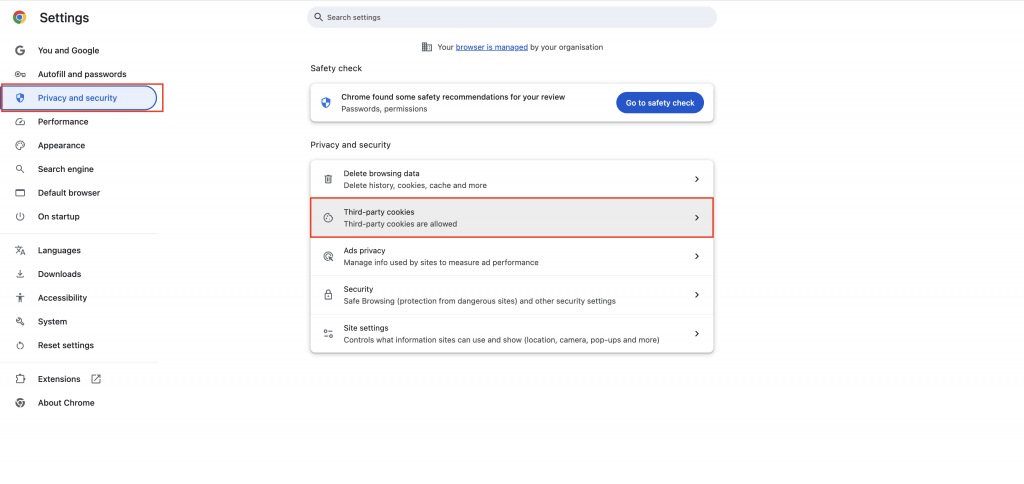
Click Privacy, then Third-party cookies
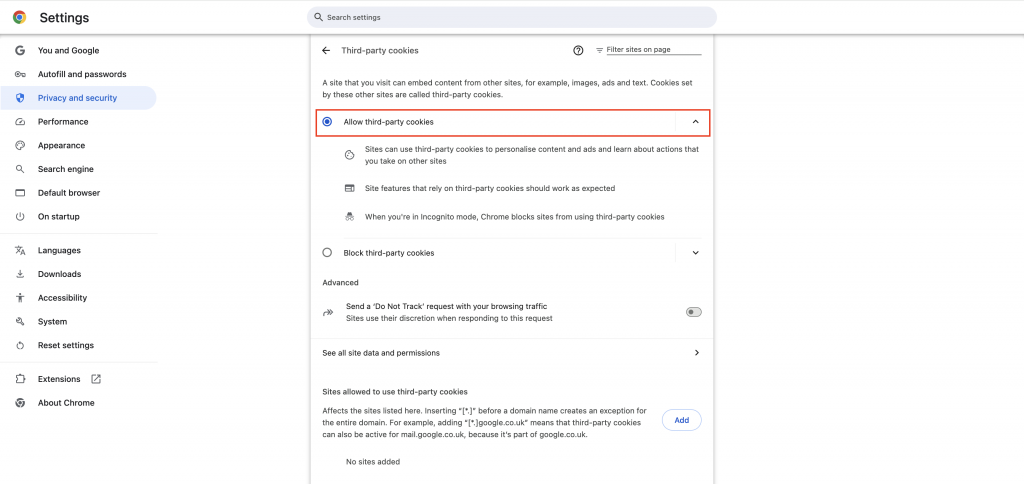
Check Allow third-party cookies
Return to the page that was showing the error message. The window should now load correctly.
Safari
Follow the steps below to enable third-party cookies in Safari.
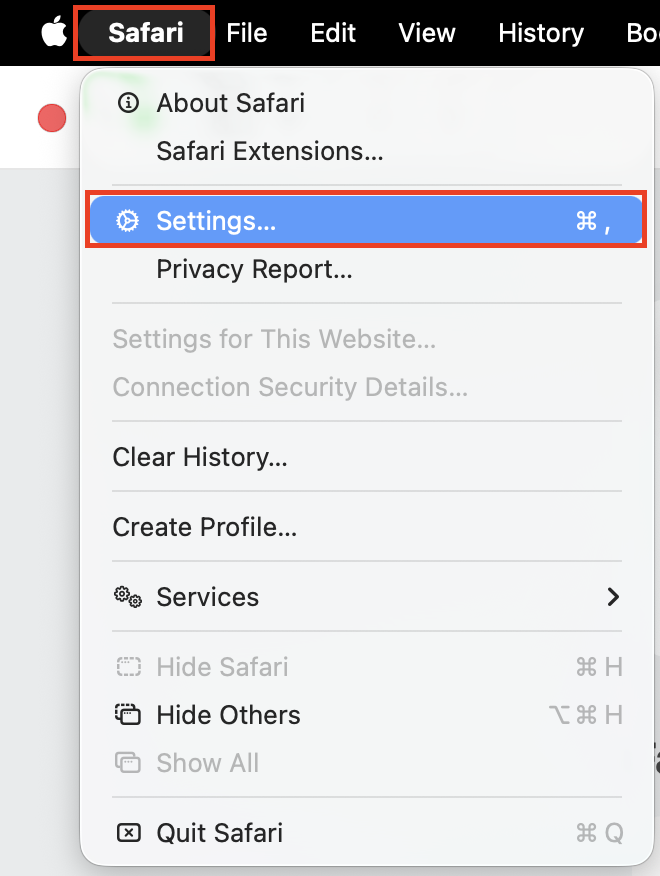
Click Safari in the menu bar, then choose Settings
Click Privacy, then un-check Prevent cross-site tracking
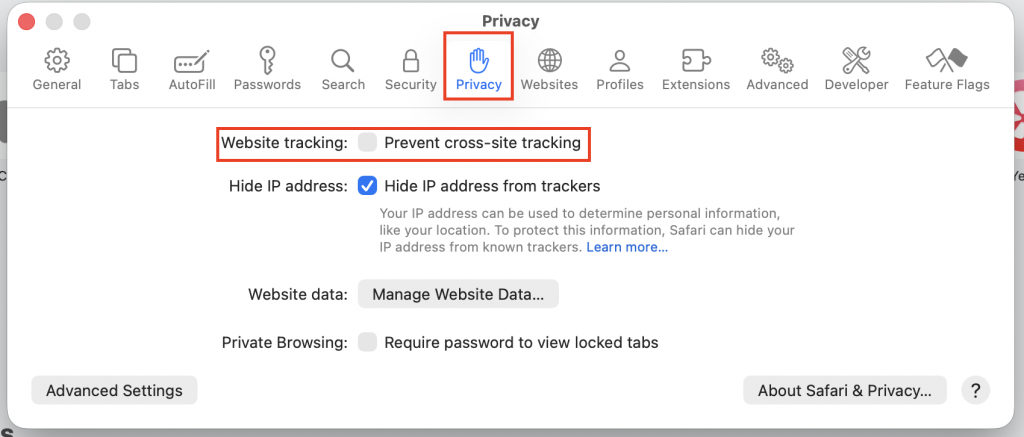
Return to the page that was showing the error message. The window should now load correctly.
Safari (iPhone)
Follow the steps below to enable third-party cookies on iPhone.
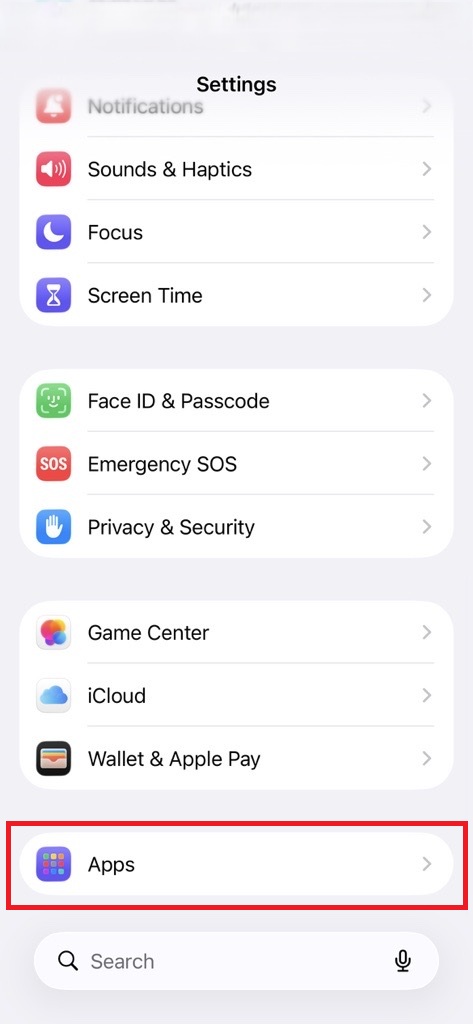
Find the Settings app

Select Apps
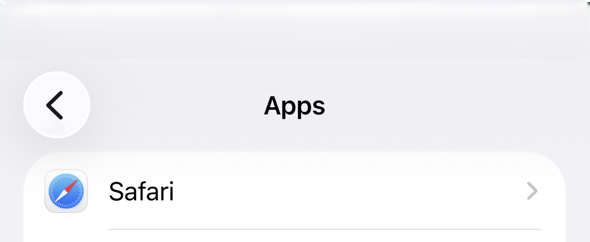
Select Safari
Scroll to Privacy and Security, and uncheck the box Prevent Cross-Site Tracking
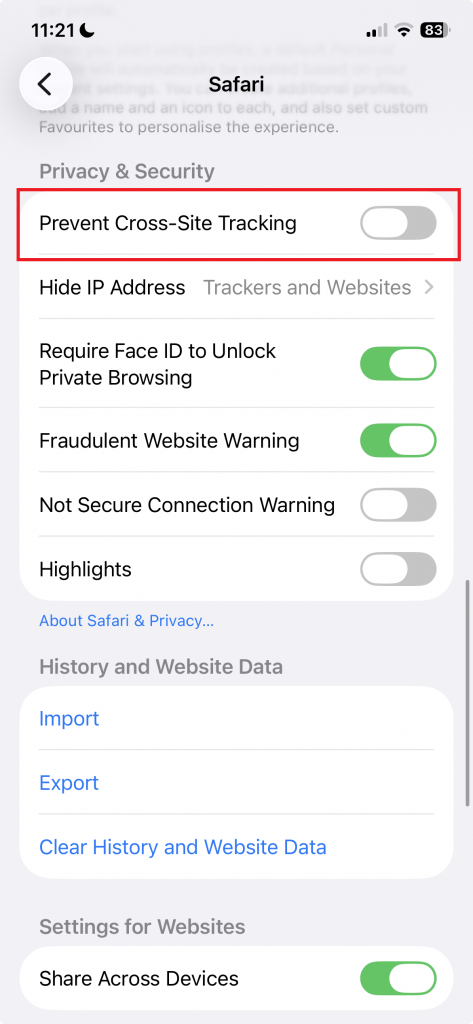
Return to the page that was showing the error message. The window should now load correctly.
Microsoft Edge
Follow the steps below to enable third-party cookies in Microsoft Edge
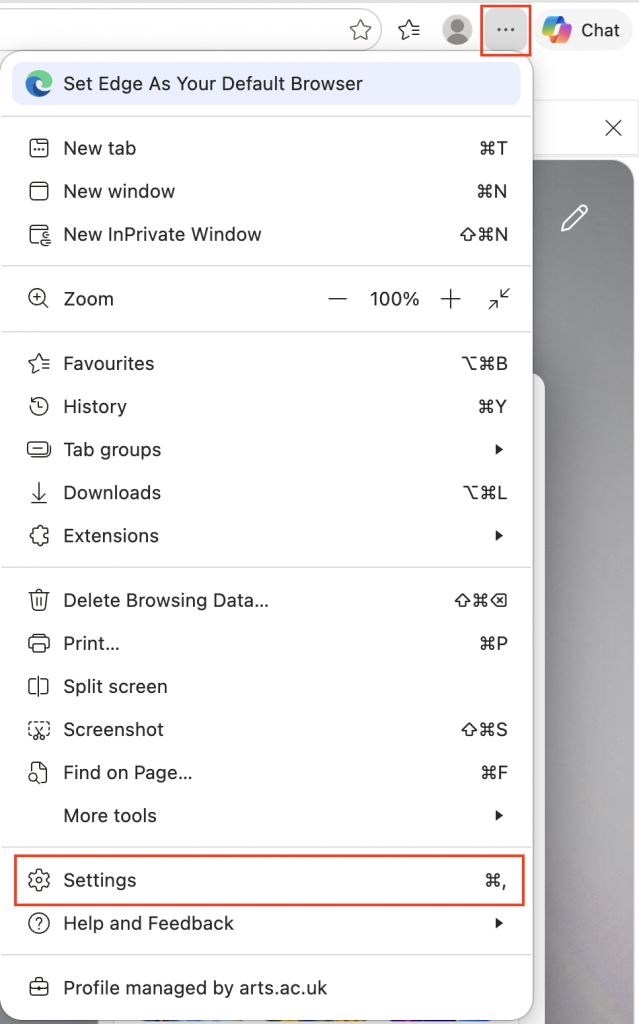
Click the three dots menu button in the top right corner, then select Settings
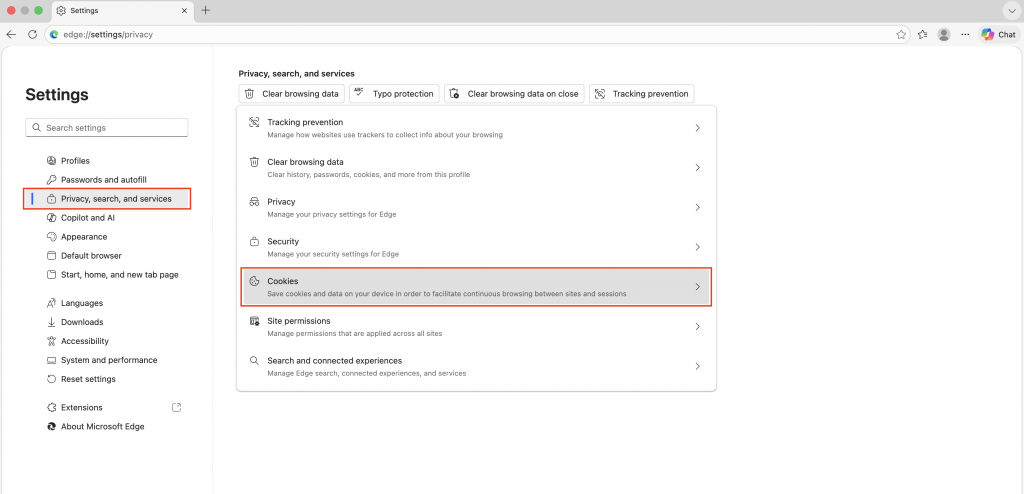
Click Privacy, search, and services then Cookies
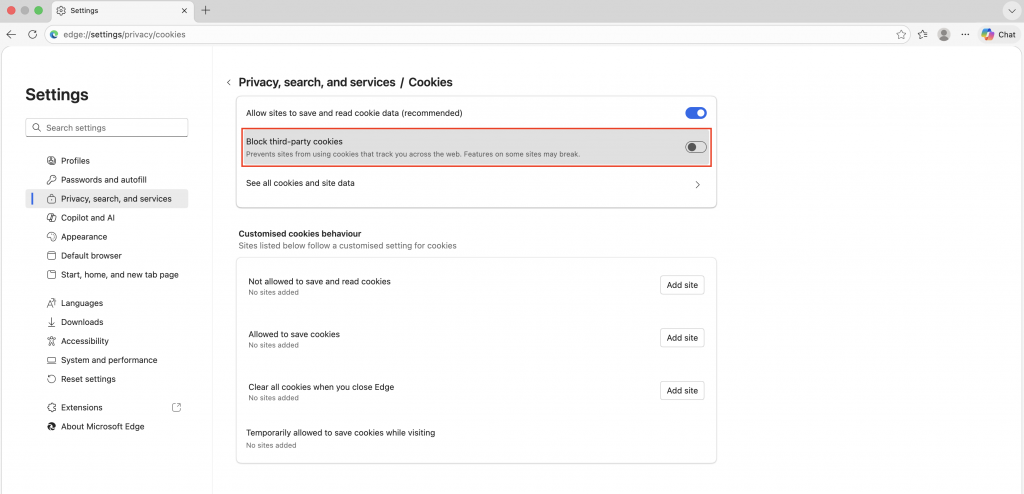
Uncheck Block third-party cookies
Return to the page that was showing the error message. The window should now load correctly.