Open your Moodle course page, and turn on Edit mode

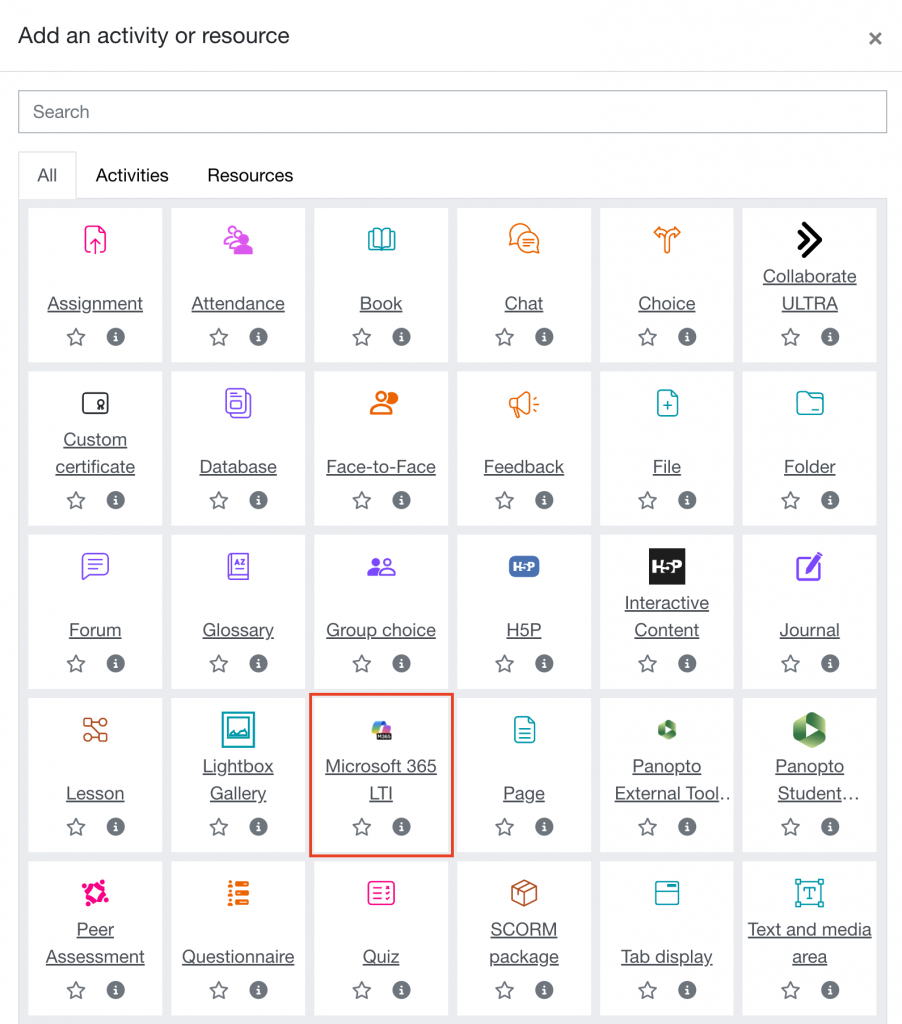
Click Add an activity or resource

Select Microsoft 365 LTI
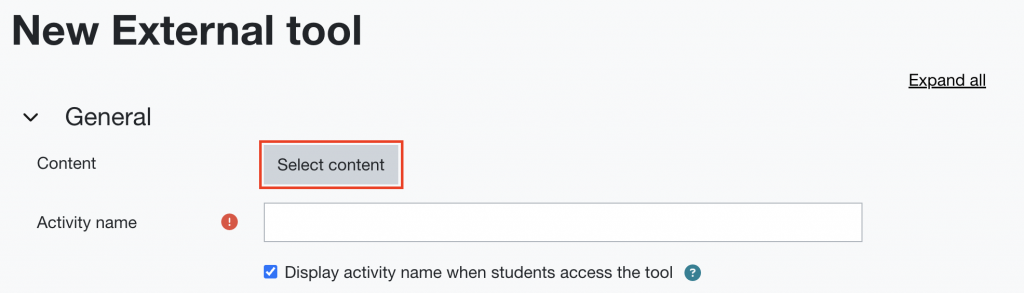
Click Select content
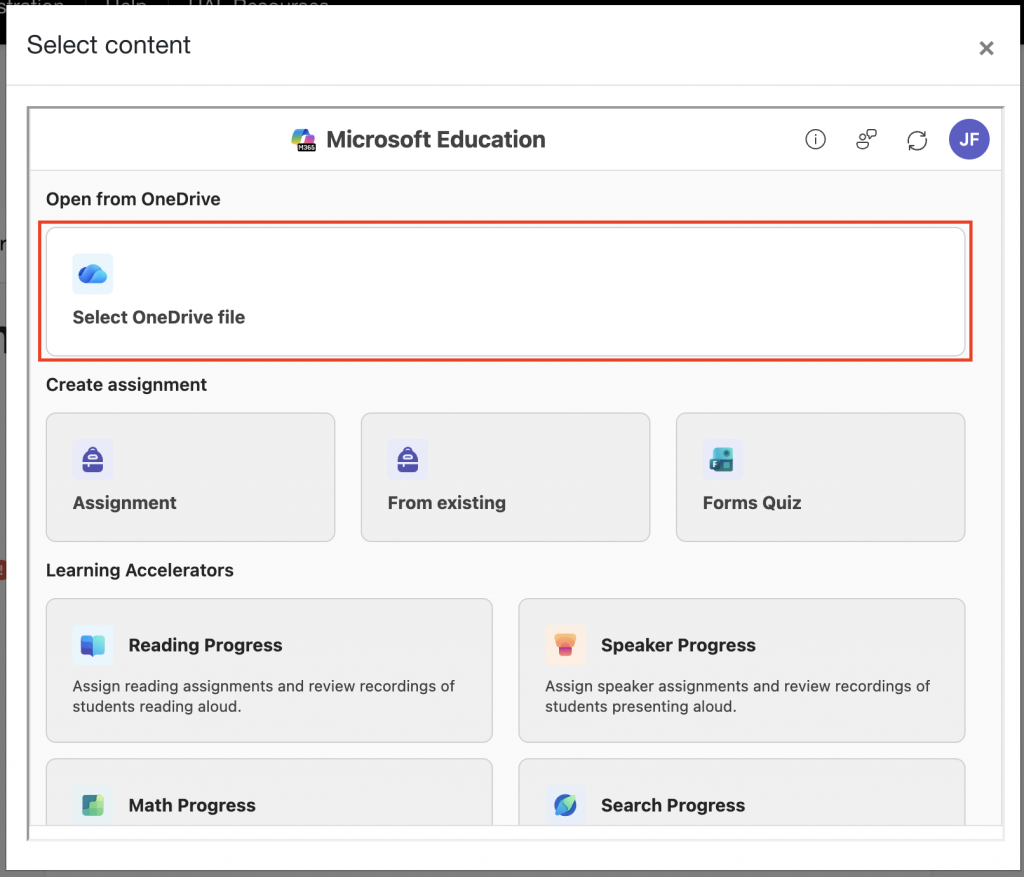
Choose Select OneDrive file
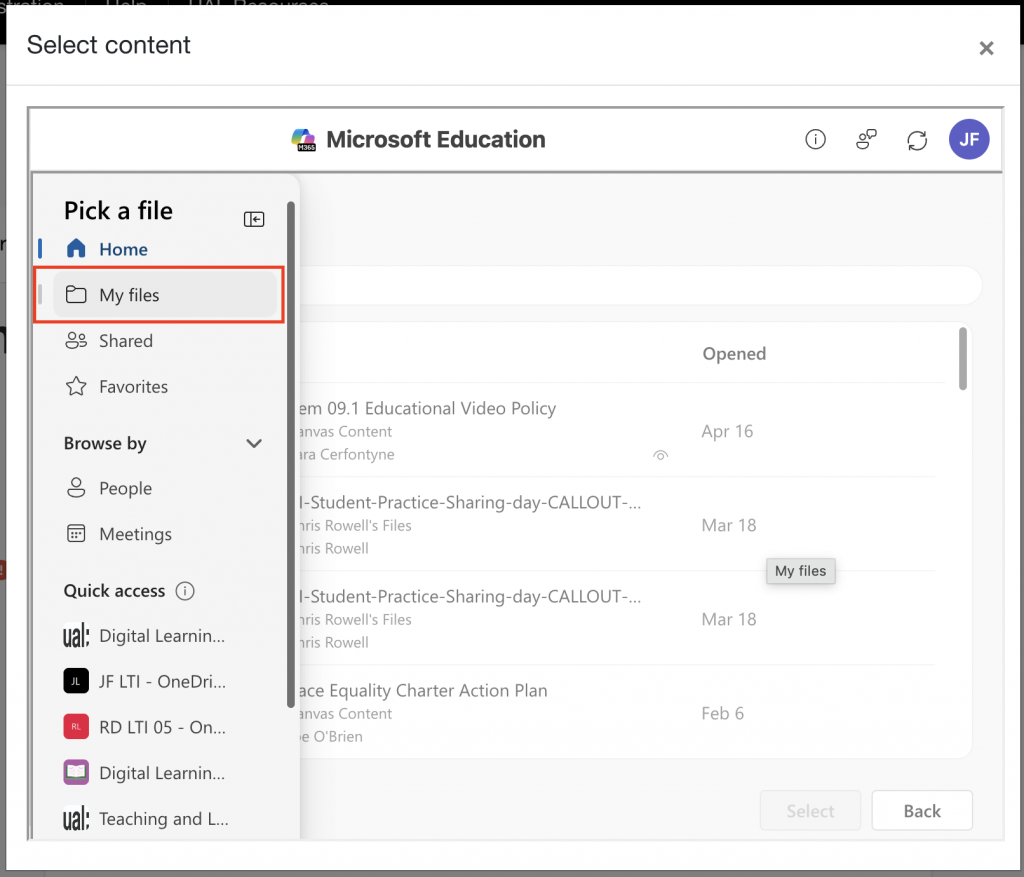
In the file selector window, click My Files
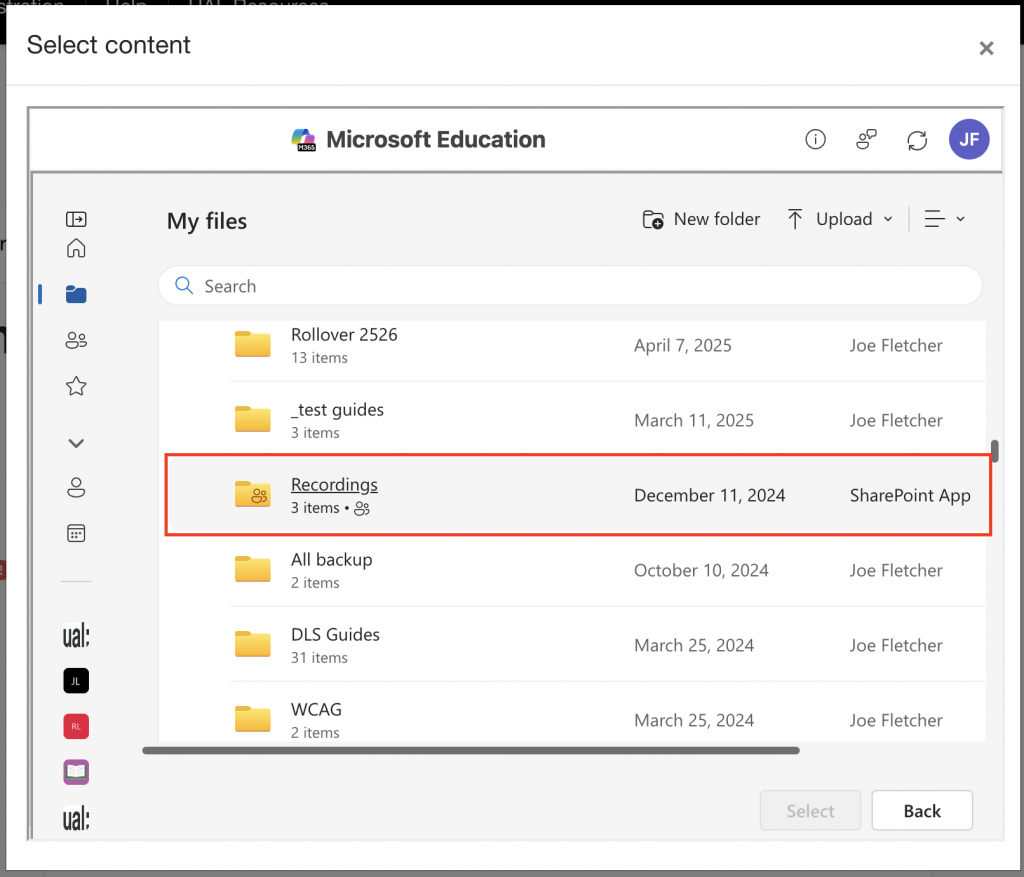
Scroll to the folder named Recordings
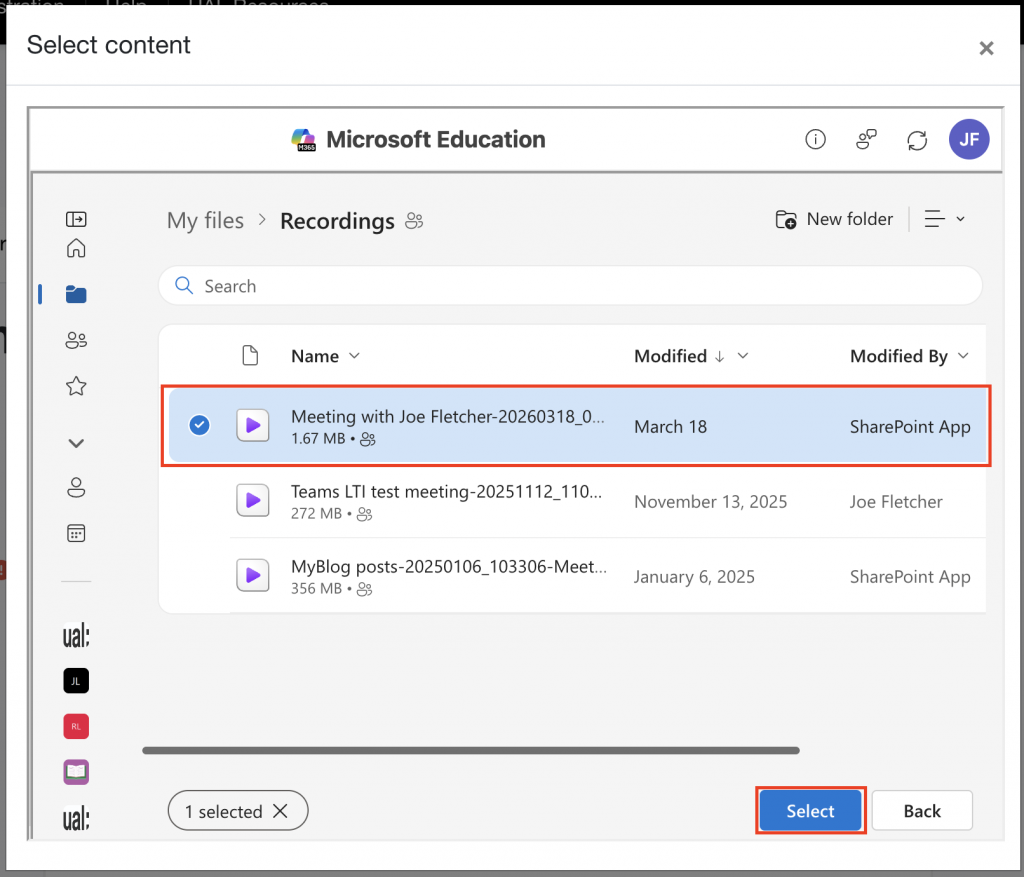
Select the file from the list of available recordings, then click Select
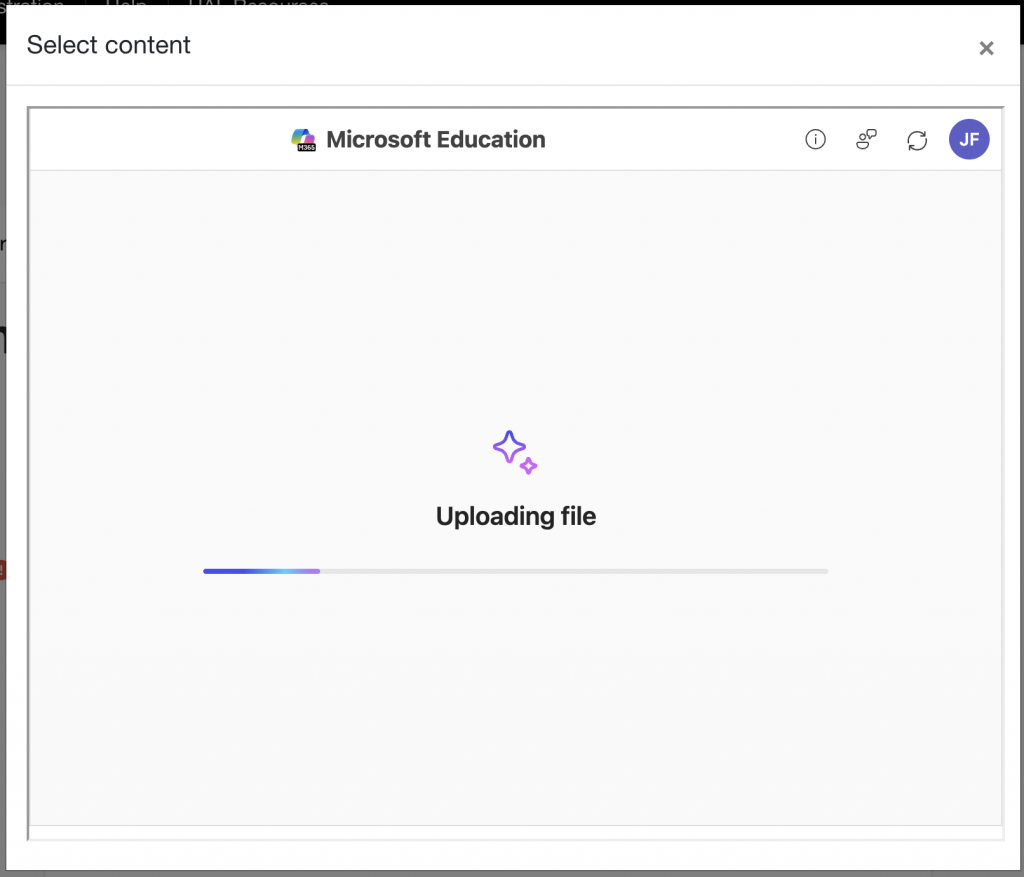
The file will upload to the course Sharepoint site. Once complete you’ll be returned to the Moodle activity.
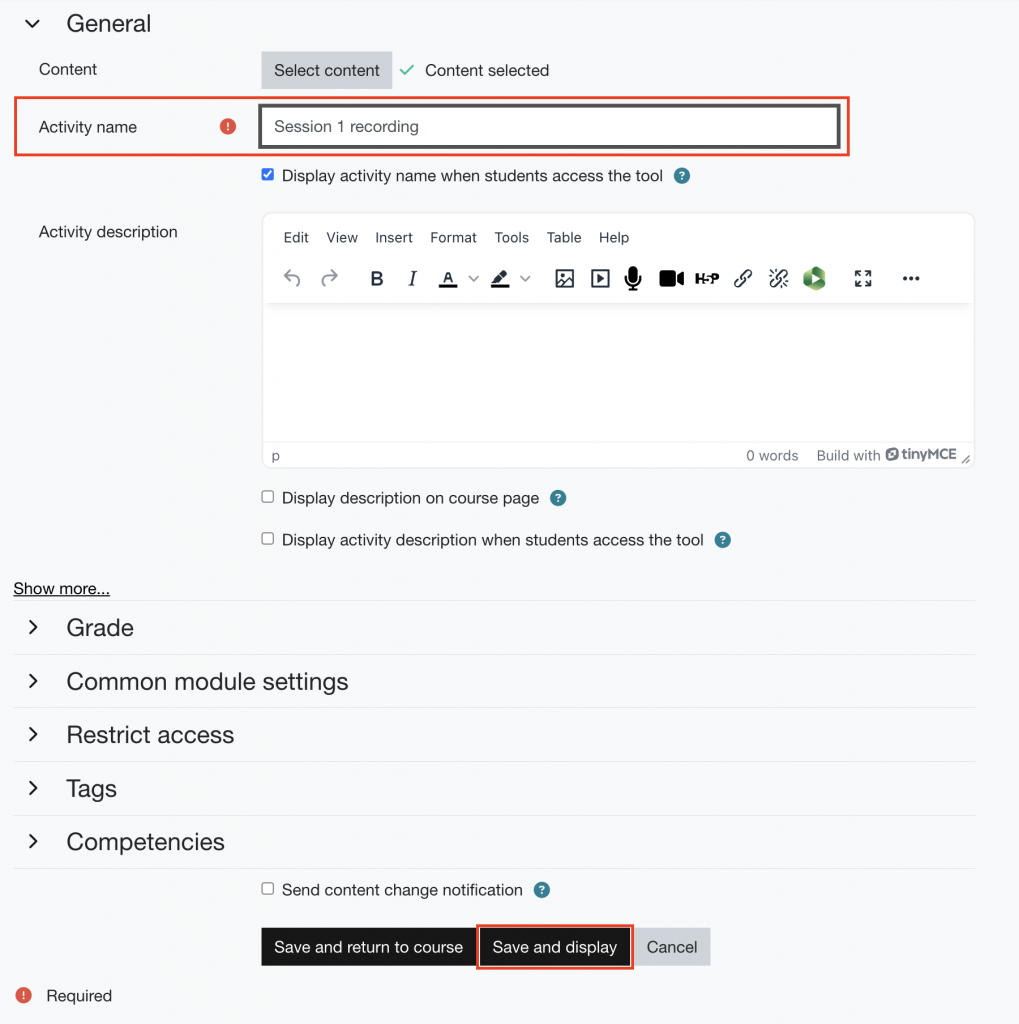
Add a name for the recording in the Activity name field (this will automatically take the name of the recording file). Click Save and display to complete the process.
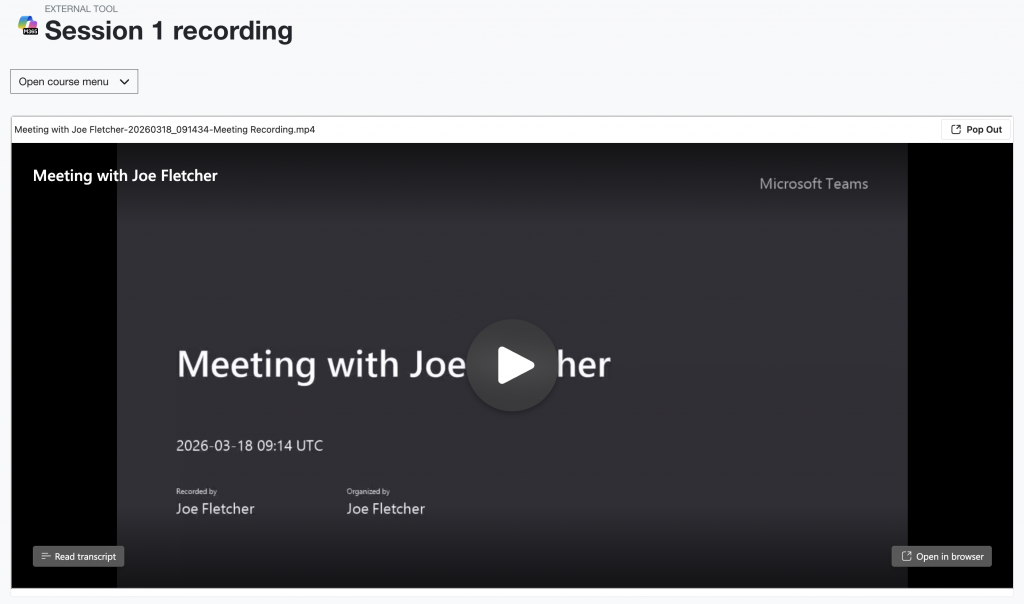
You’ll be taken to the view of the recording in Moodle