
When accessing Microsoft content in Moodle such as Teams meetings or recordings you might see an error message: Unable to complete login securely. Please try again.
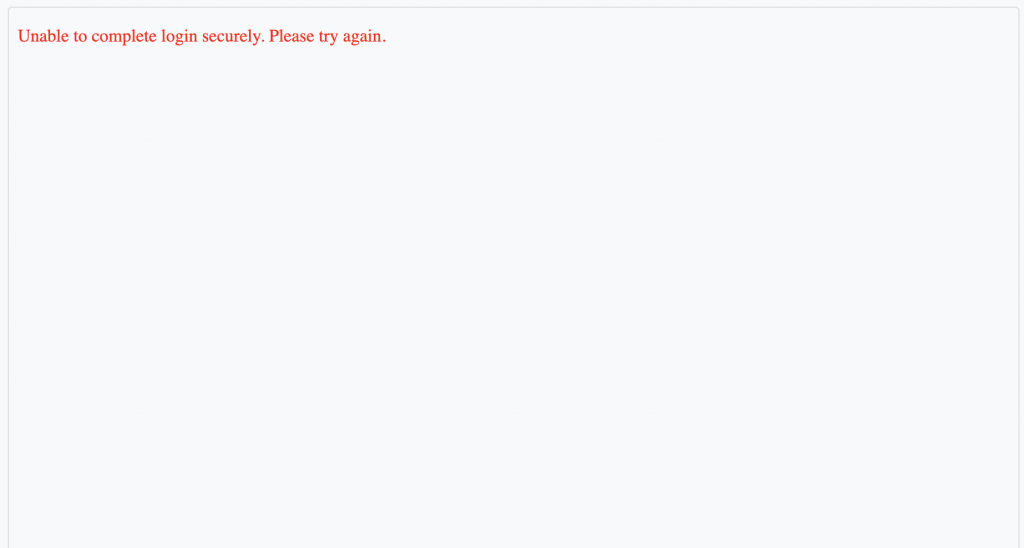
This is caused by your browser blocking third-party cookies, which are used by Microsoft to log in to their platforms. To sign in, you’ll need to enable third-party cookies in your browser. Find your browser in the list below to learn how to do this.
Google Chrome
Follow the steps below to enable third-party cookies in Google Chrome.
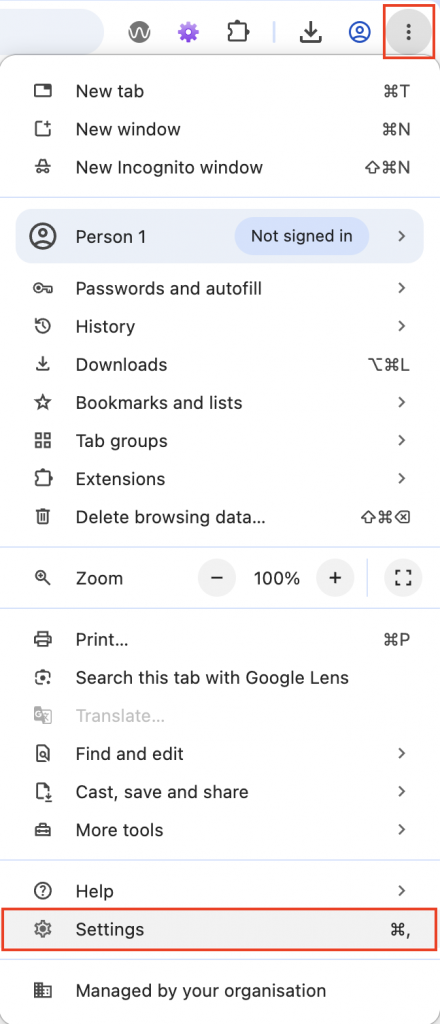
Click the three dots menu button in the top right corner, then select Settings
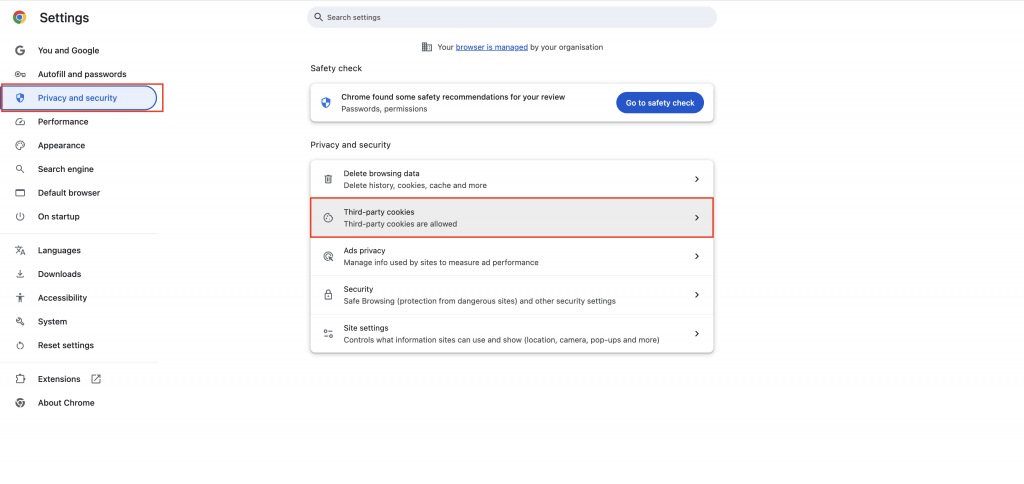
Click Privacy, then Third-party cookies
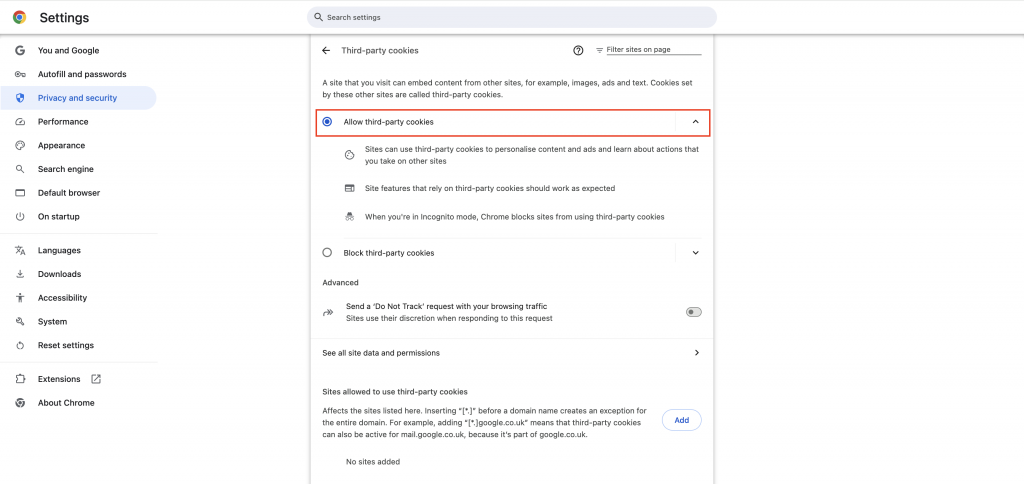
Check Allow third-party cookies
Return to the page that was showing the error message. The window should now load correctly.
Safari
Follow the steps below to enable third-party cookies in Safari.
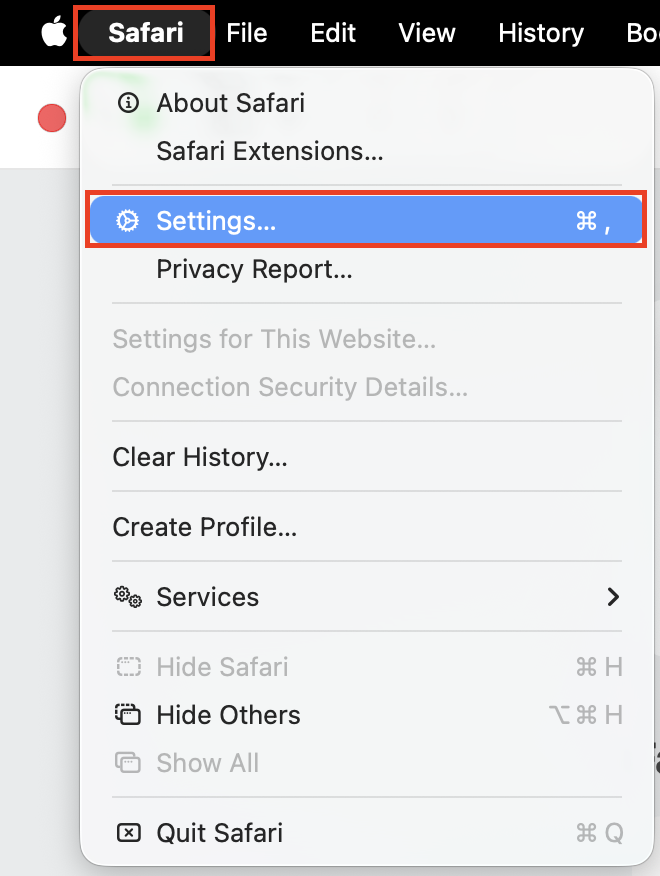
Click Safari in the menu bar, then choose Settings
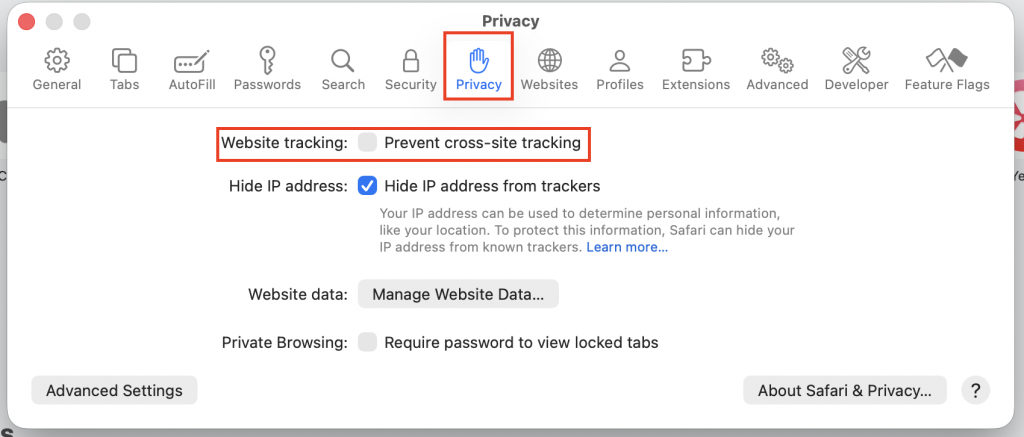
Click Privacy, then un-check Prevent cross-site tracking
Return to the page that was showing the error message. The window should now load correctly.
Microsoft Edge
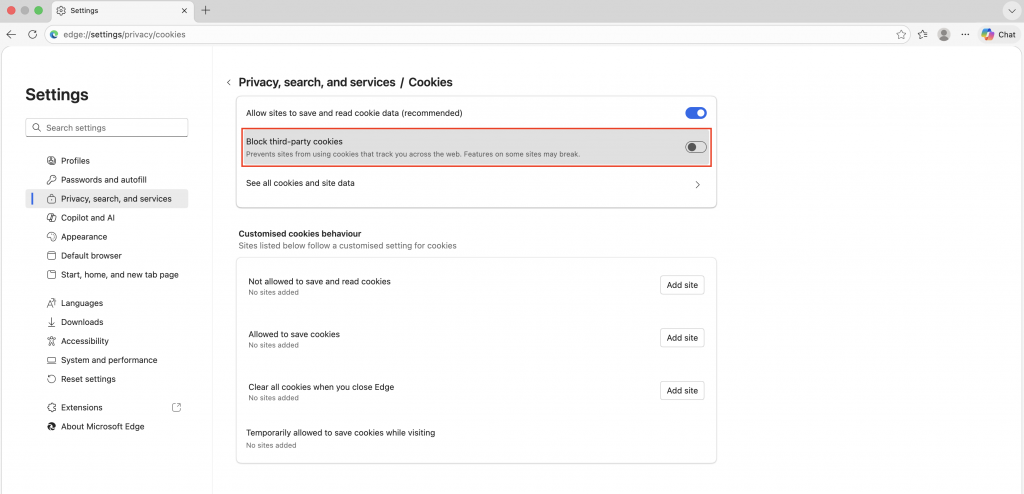
Follow the steps below to enable third-party cookies in Microsoft Edge
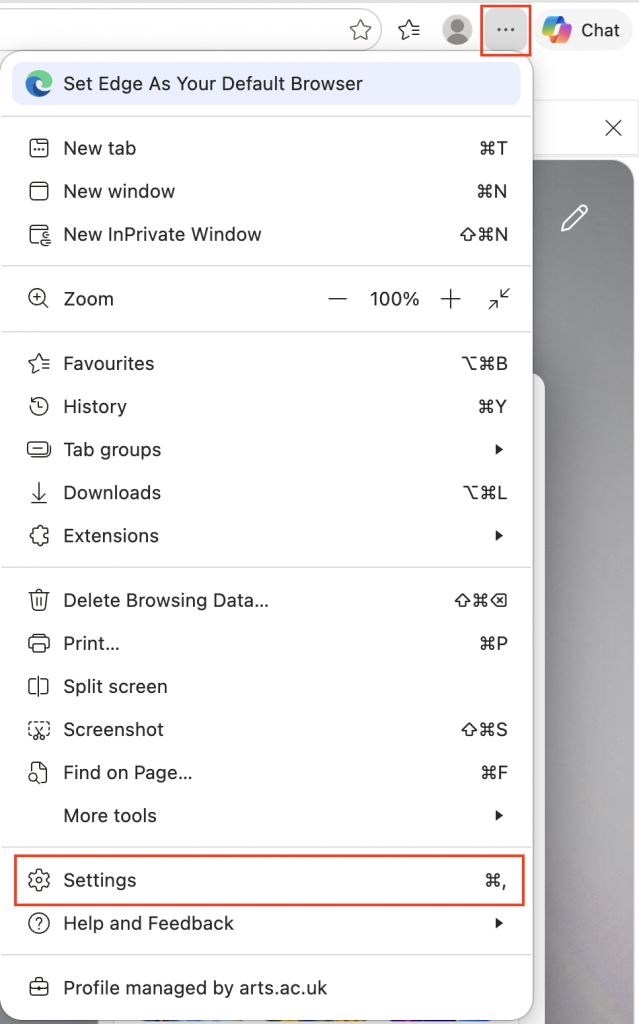
Click the three dots menu button in the top right corner, then select Settings
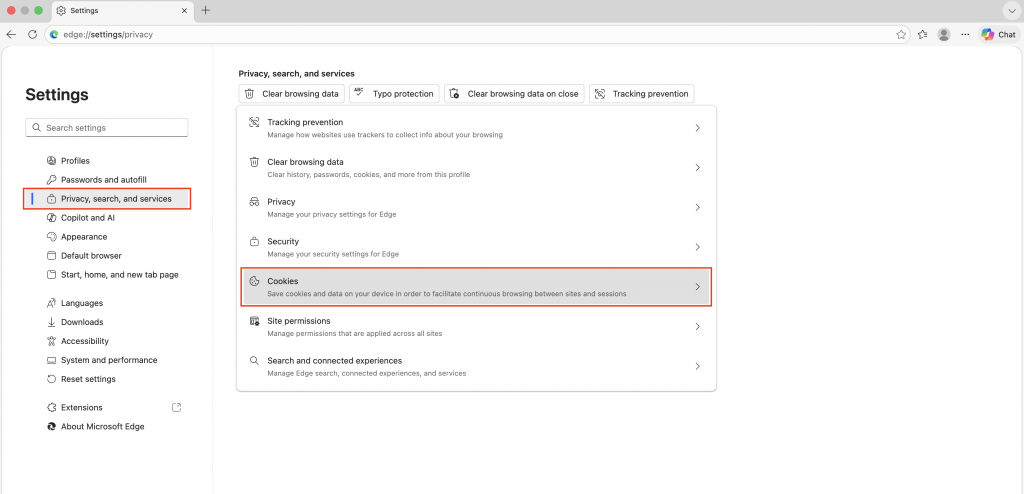
Click Privacy, search, and services then Cookies
Uncheck Block third-party cookies
Return to the page that was showing the error message. The window should now load correctly.