To start, create a new post, or open the post you’d like to add a document to in the WordPress editor.
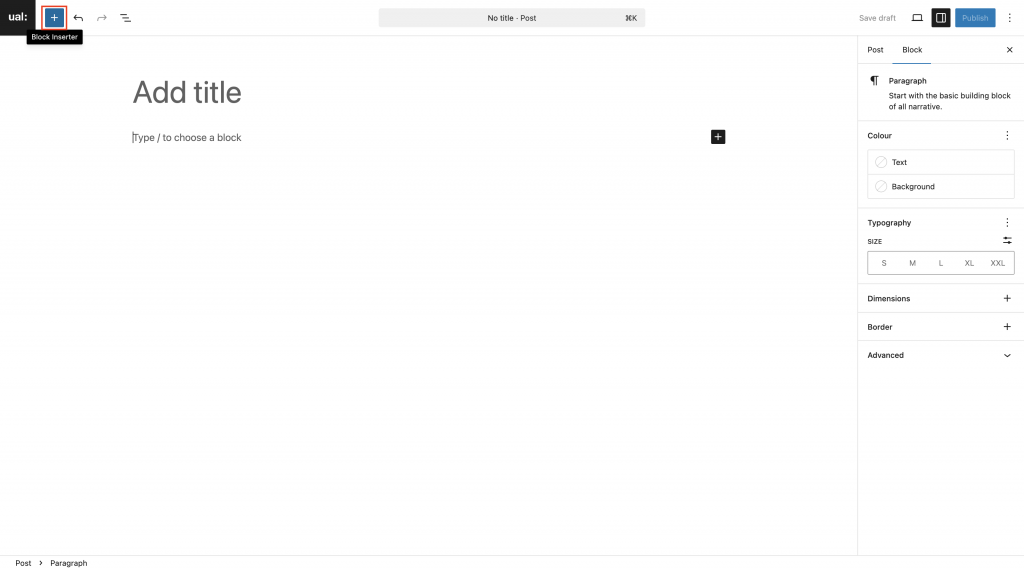
Click in the page editor on the location where you’d like to add a document, then click the Add block button in the top left corner
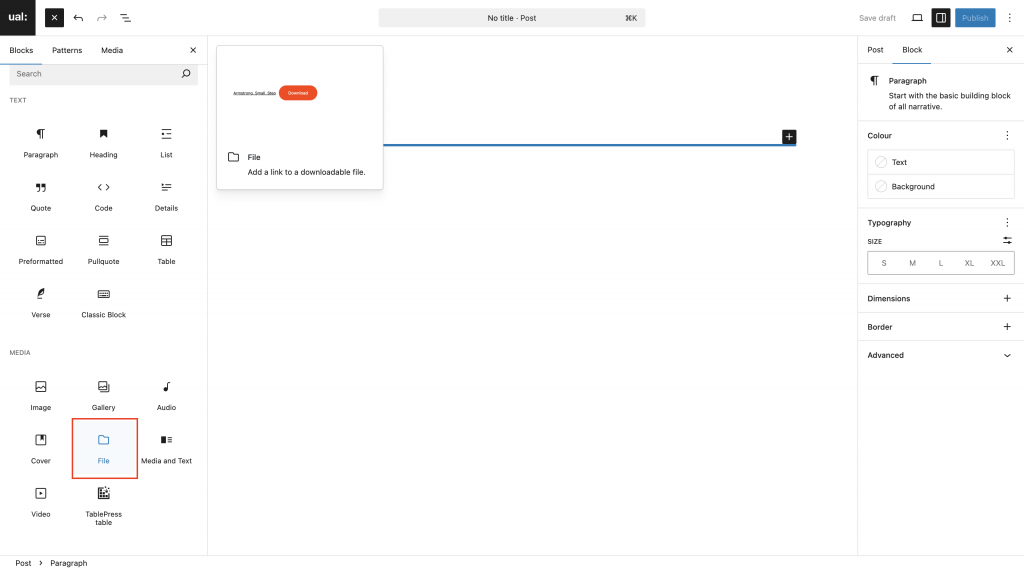
Scroll down to the Media section, then select the Files block.
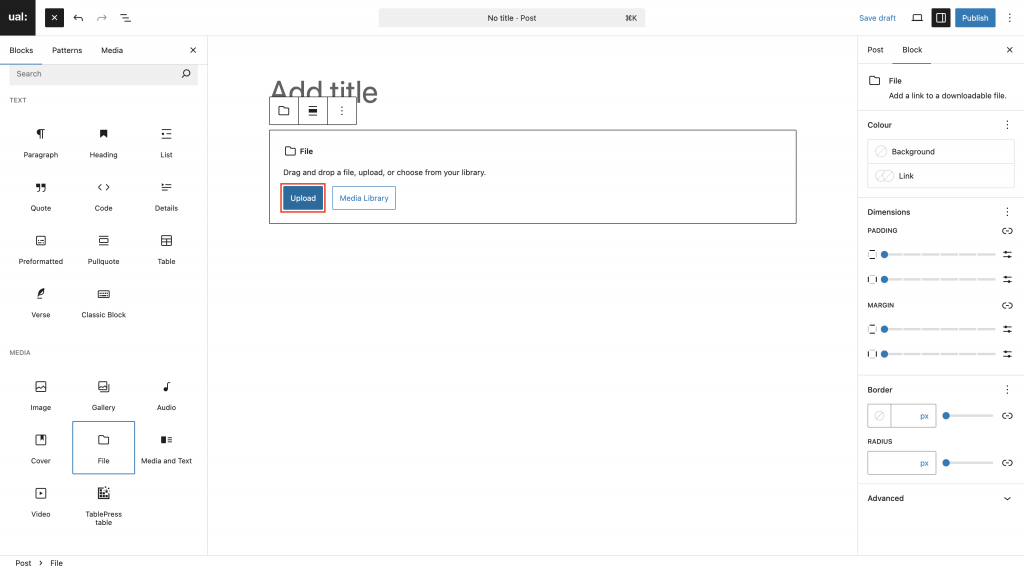
Click Upload to add a file, then use the file browser window to find the file on your device.
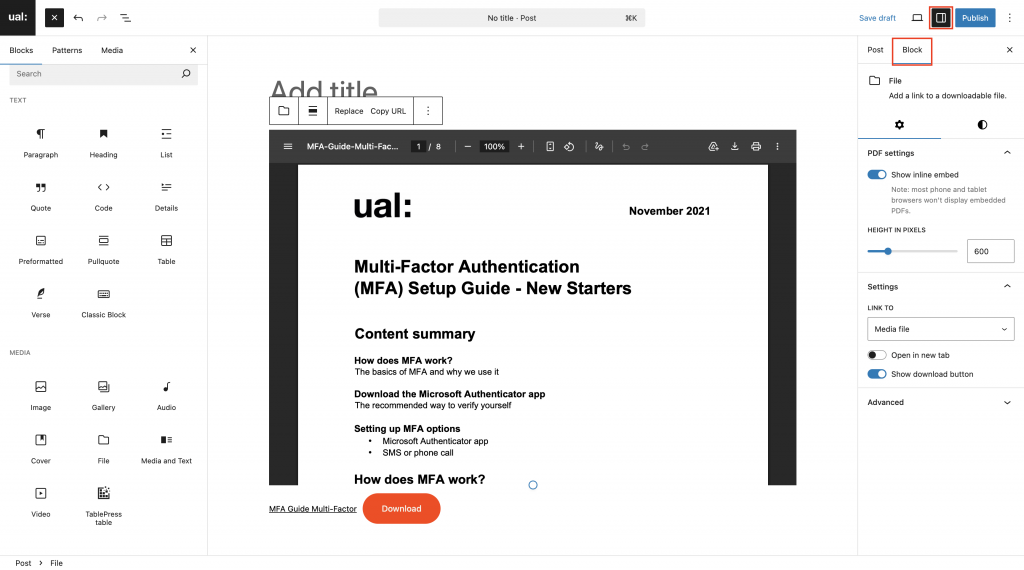
The file will appear in the content editor. If you are uploading a PDF file, MyBlog will embed this in the page for you. For other file types, such as Microsoft Word documents, a link to open or download the file will be added instead.
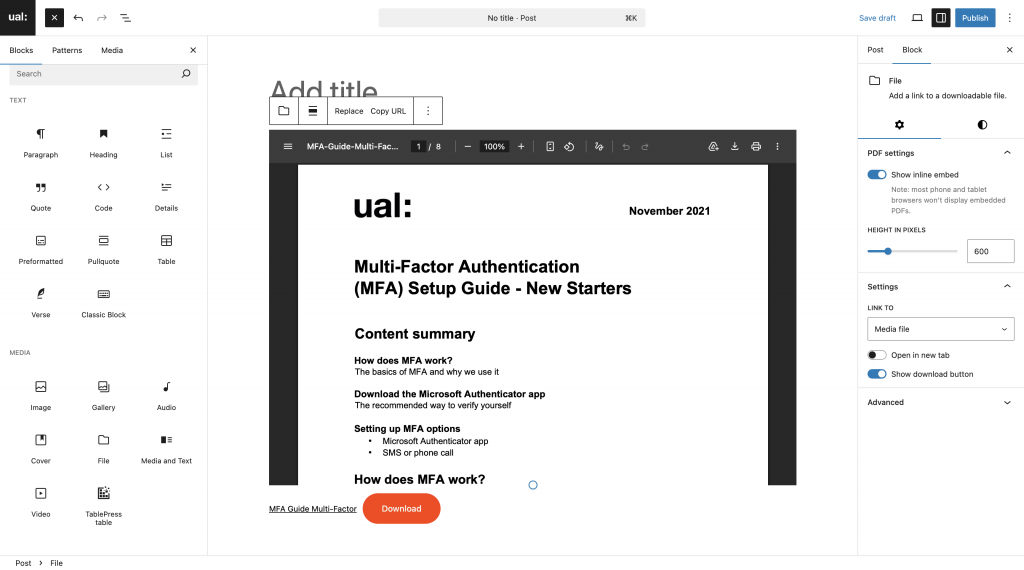
Additional options for your uploaded file can be found in the settings panel. Click the Settings button in the menu bar, then choose the Block tab to access these.