About Workflow
Workflow is an online portfolio platform that allows you to publish and share your work, explore the work of others, collaborate on group projects, and submit your work for assessment.
Workflow can be used to collect information from a wide range of digital sources into a portfolio format. These can include text, images, video, PDFs, social media content and a variety of other sources.
How to find Workflow
Workflow can be found at: https://workflow.arts.ac.uk/
Logging in
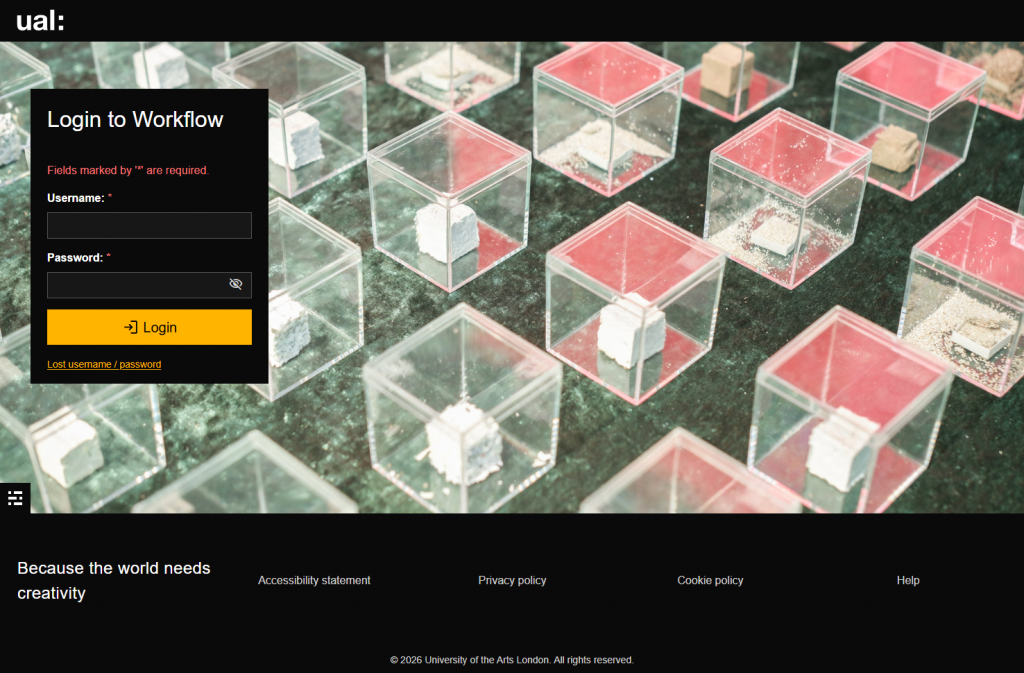
To log in to Workflow, enter your UAL username and password to continue.
Logging in via Moodle Dashboard
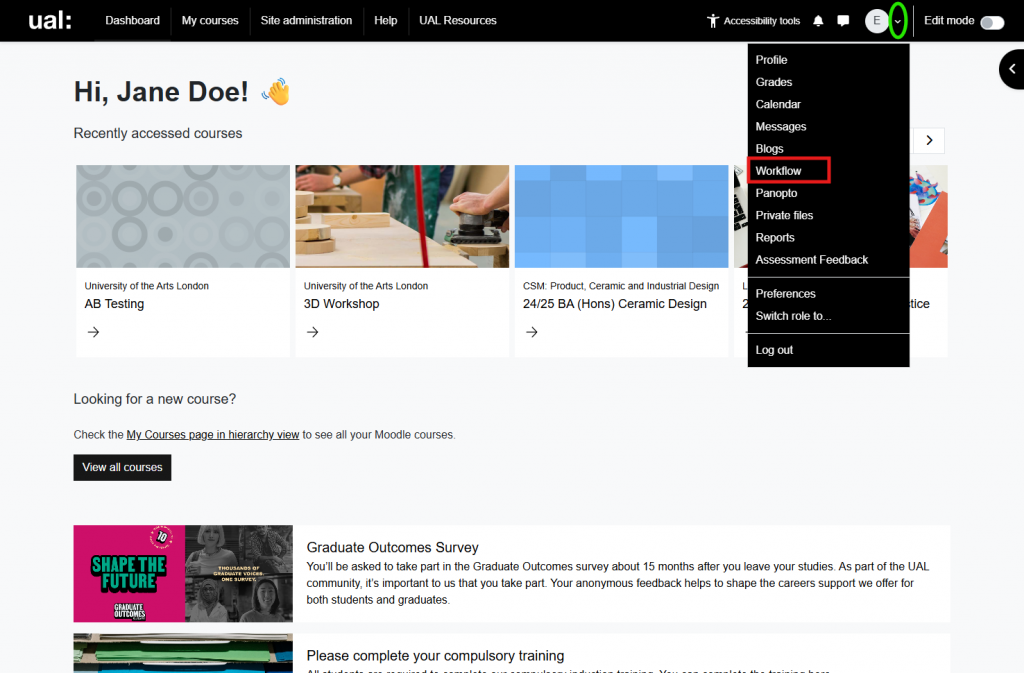
While being logged into your Moodle platform, you will be able to access to Workflow platform without needing to enter your Workflow credentials.
Workflow Dashboard
The Workflow Dashboard is a homepage for your Workflow account. Here you can view your portfolios and those shared with you, as well as keep track of comments, messages and notifications through your inbox.
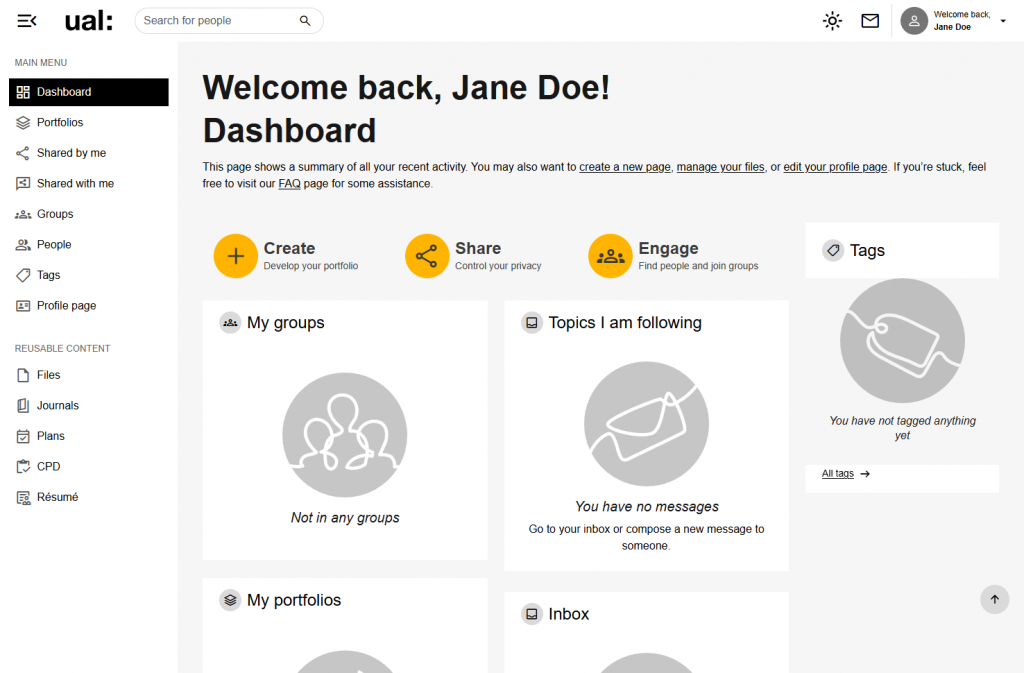
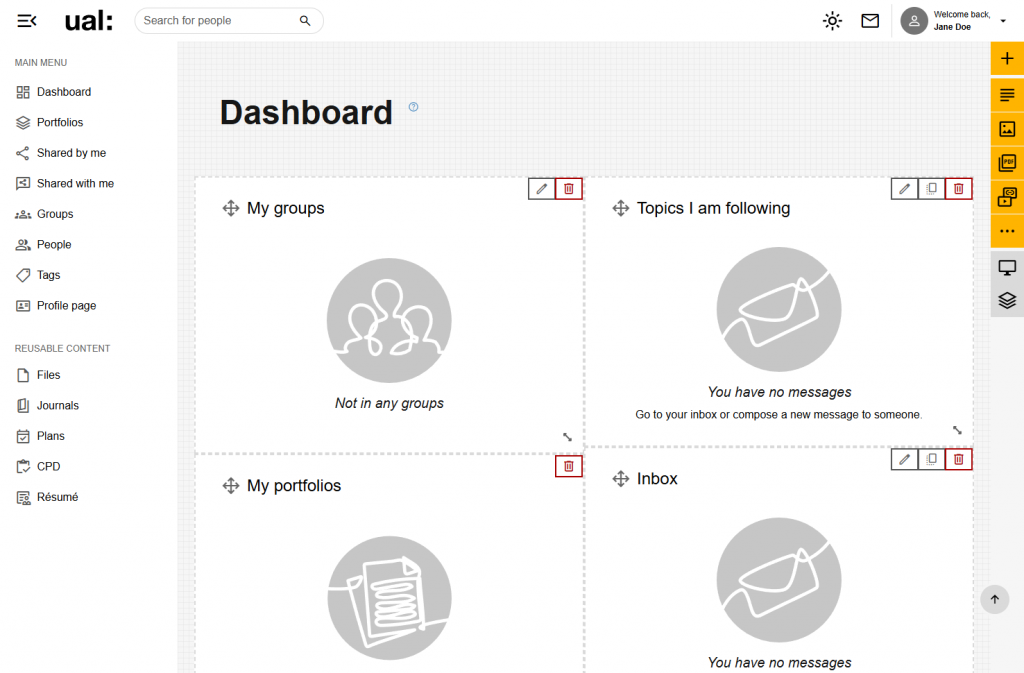
The dashboard can also be edited to include other content blocks. This works in the same way as other Workflow pages, with the existing blocks able to be moved or deleted, and new content included. While viewing your dashboard Workflow Dashboard, first go to stacks Portfolios tab on the left pane, and on ‘Dashboard page’ under Actions drop-down menu, select the edit Edit button to get started.
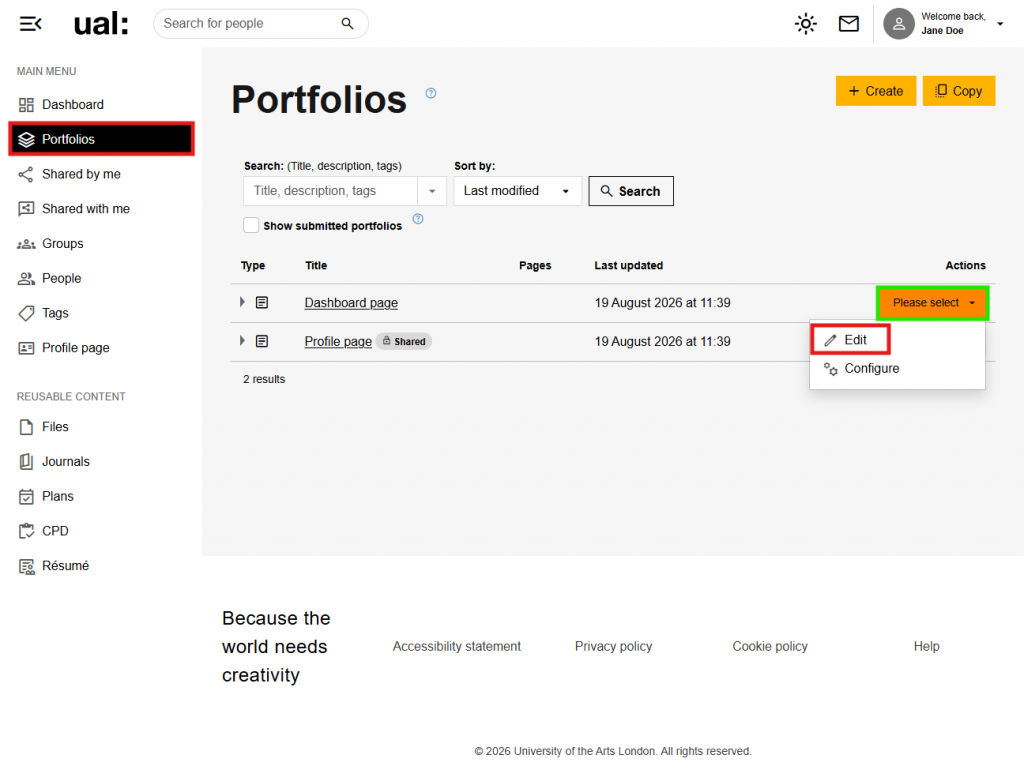
You will be able to edit your dashboard with more blocks or move blocks to your liking.
Update your Profile
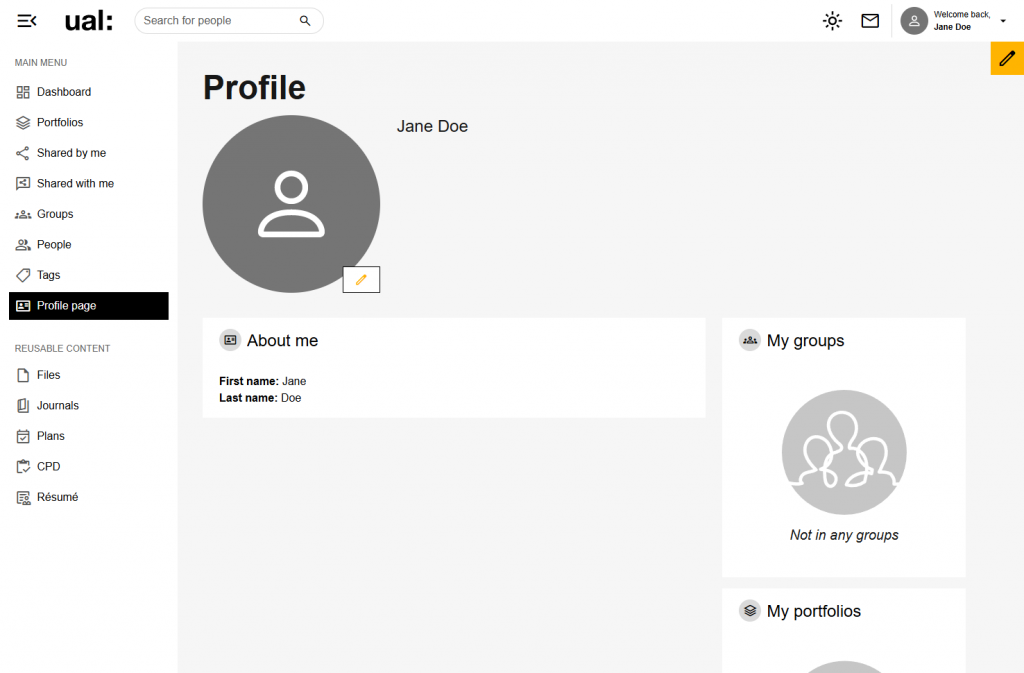
Under Main Menu on the left pane, select your id_card Profile Page and click on the edit Pencil icon to start editing your profile and change your profile picture.
Getting Around
Find your way around Workflow using the user settings at the top right, and the main menu/re-useable content at the left pane of any Workflow page.
User Settings
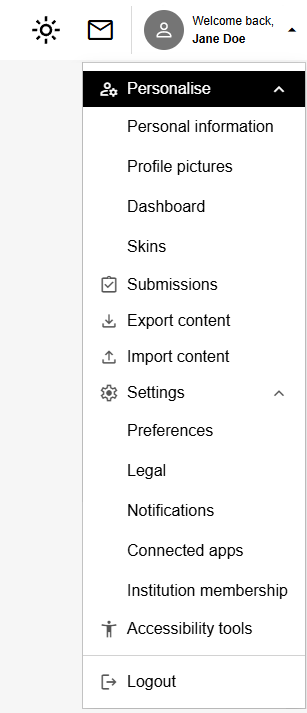
Here you’ll find links to your mail Notifications Inbox, light_mode Theme Colour to toggle between Dark/Light/Auto, your person Workflow Profile, your assignment_turned_in Submissions, upload Import/download Export content, and manage_accounts Personalised Settings to improve your user experience in Workflow platform.
Main Menu & Re-useable Content
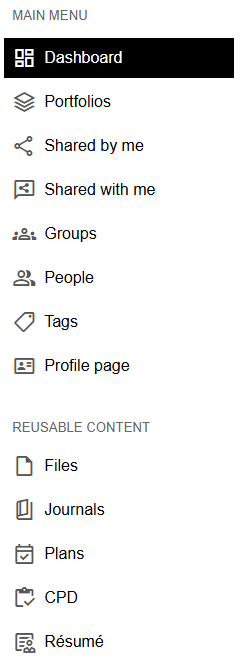
With our recent theme update, you will now be able to navigate in every Workflow page to access your work, such as stacks Portfolios,groups Groups, share Shared Content, group People, draft Files,book_5 Journals, etc.
Editing your Profile
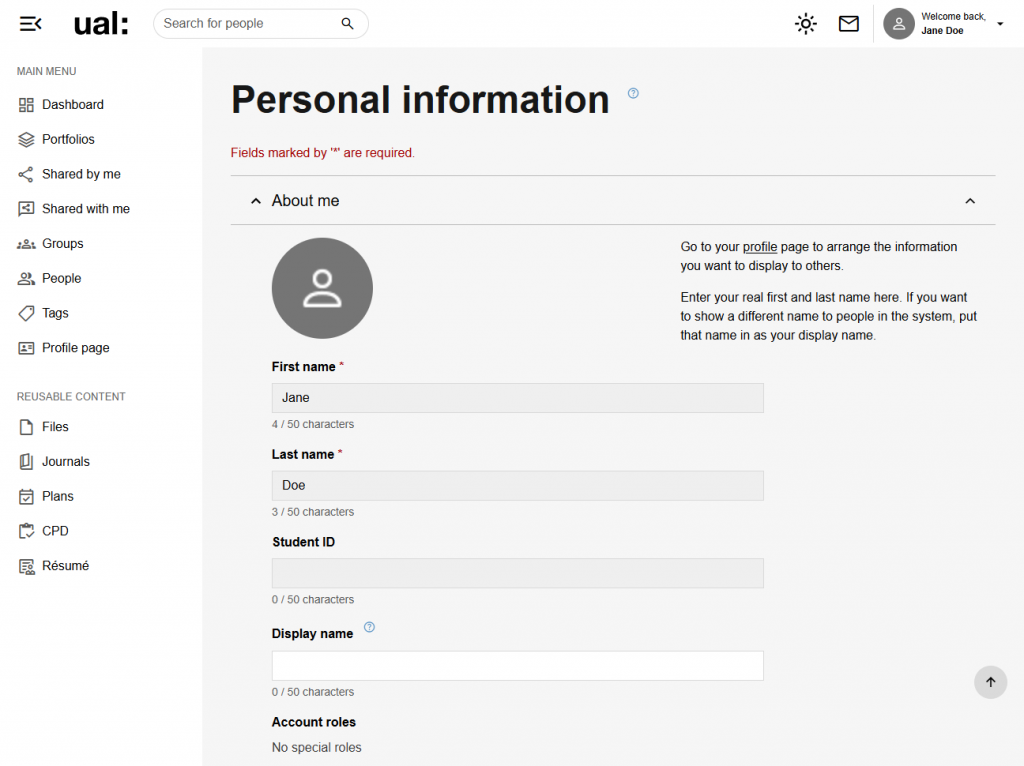
You can edit your Workflow profile using the Personal Information menu button under person User Settings >manage_accounts Personalise. Here you can update your display name, contact information, and add links to your social media.
Click the profile image to update your profile picture.